How to use ConnectedRoom Capture
Learn how to set up ConnectedRoom Capture so your lights and effects react to the game on your screen.
Written By Guillaume
Last updated About 12 hours ago
ConnectedRoom Capture reads the scoreboard on your TV through a capture card, using on-device machine learning, so your lights and effects react to the game you are actually watching. It uses your GPU when one is available.
Capture is currently in beta. The Capture module is only available to install from the beta version of the ConnectedRoom Hub. On the regular Hub, it appears as Coming soon.
What you need
A ConnectedRoom Hub
The Hub can be installed on an existing computer running Windows, macOS or Linux. It is also built into ConnectedRoom OS, but Capture is not available on ConnectedRoom OS yet.
A capture card
A capture card connected to the computer running the Hub, with your TV's source (cable box, console, streaming box) going through it.
Step 1: Install the Capture module in the Hub
Capture is a module you add to the Hub. It is not installed by default.
Open the ConnectedRoom Hub app on your computer.
Go to Modules.
Under ConnectedRoom Capture, click Download & install.
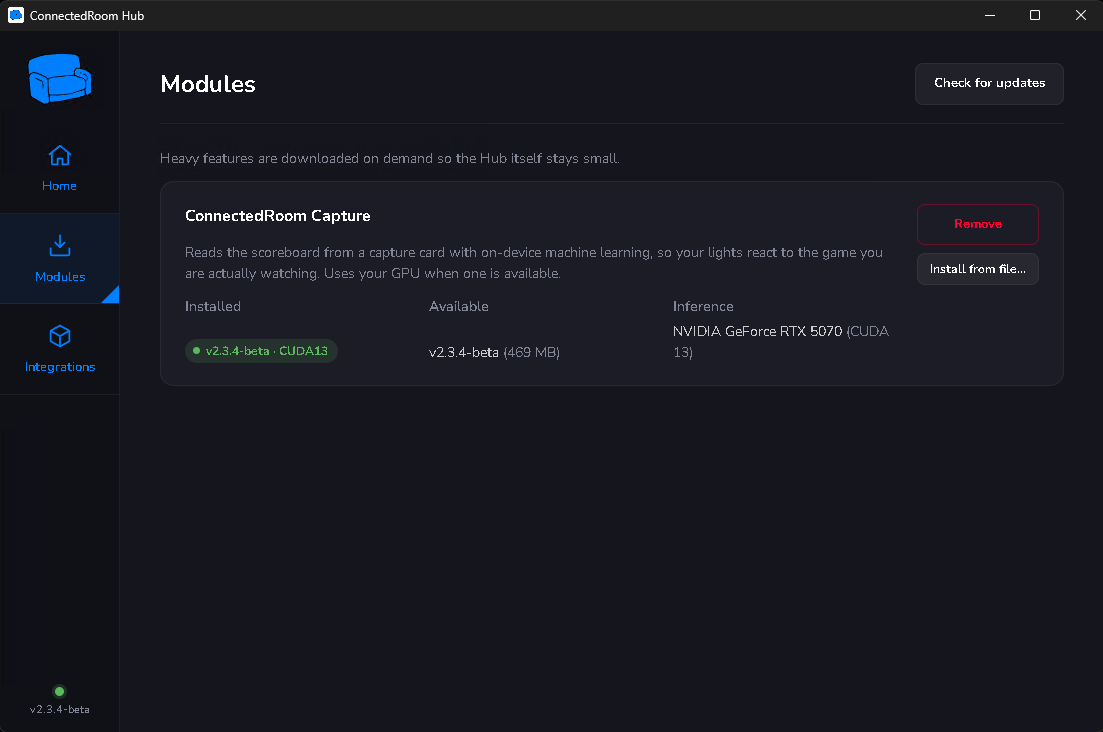
Do you have an NVIDIA graphics card? The Hub detects it and suggests the best Build for you (CPU, CUDA 12 or CUDA 13). Keep the recommended build unless you have a reason to change it. CUDA builds need the matching CUDA runtime and cuDNN 9 installed on the computer.
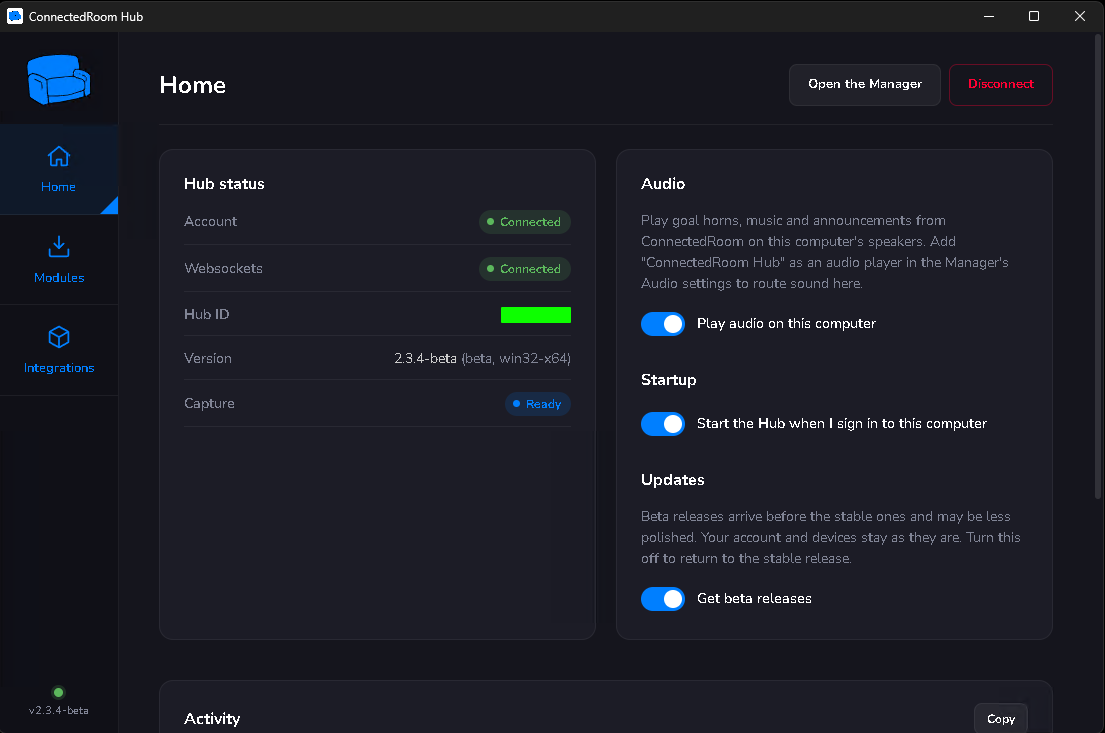
When the installation finishes, the Capture status on the Hub home page changes from Not installed to Ready.
Step 2: Open Capture in the ConnectedRoom app
For the best experience, do this on another device, like a phone or a tablet, or wherever you usually use ConnectedRoom. That way you can adjust Capture without leaving the couch.
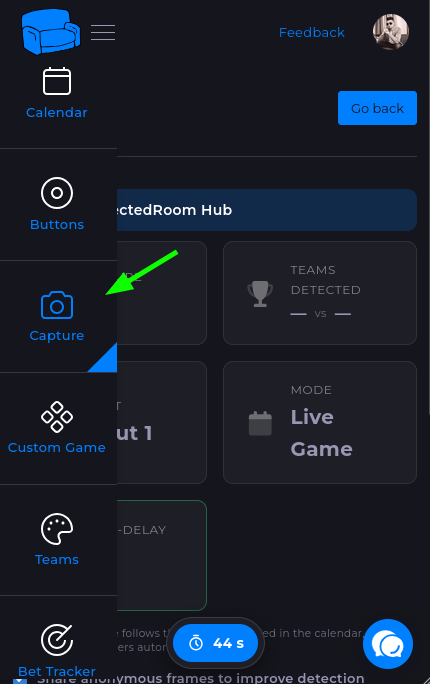
Open the ConnectedRoom app and open the menu.
Select Capture.
Step 3: Select your Hub
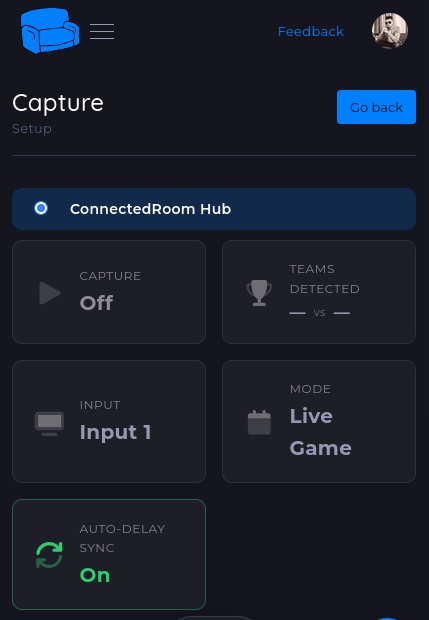
Your Hubs are listed at the top of the page. Select the one that has the capture card plugged into it. If you only have one Hub, it is selected for you. ConnectedRoom connects to it and the Capture controls appear.
Step 4: Check your input
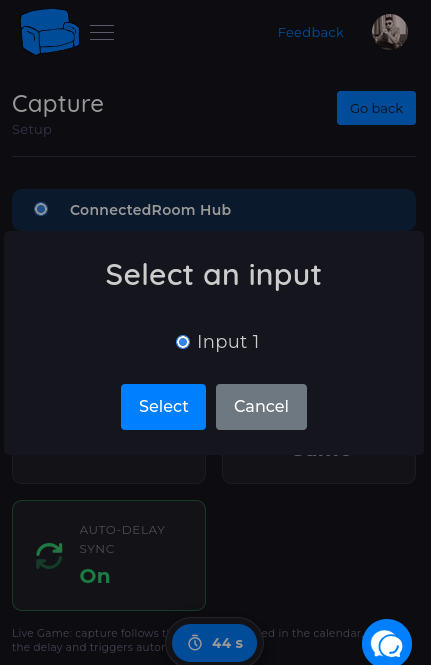
Capture automatically detects your capture card. The Input tile shows which input is selected. If it is the wrong one, tap the tile and choose the right input from the list.
Once the input is right, you can start Capture with the Capture tile (Off → On). The Teams Detected tile shows the two teams Capture reads from your scoreboard, which is a quick way to confirm that it sees your game correctly.
Step 5: Choose a mode
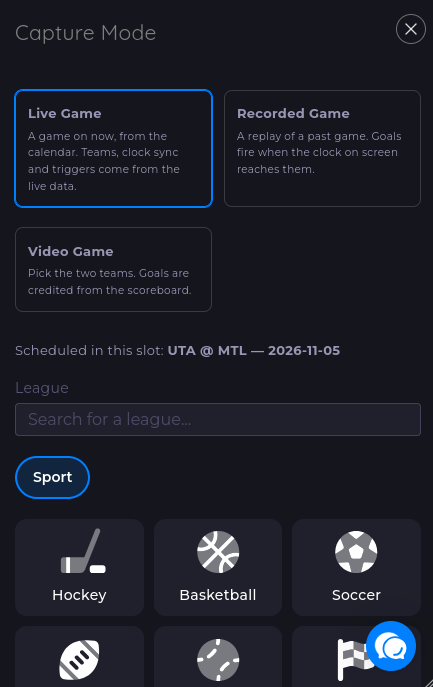
Tap the Mode tile and pick what you are watching, then tap Save.
Live Game
For a game that is on right now. Capture follows the game scheduled in your calendar, syncs your delay automatically and triggers your actions as the game happens. Pick the league, then Pick a game if it is not scheduled yet.
Recorded Game
For a replay of a past game. Pick the league, then the game. Goals fire when the clock on your screen reaches them, using the game's data.
Video Game
For sports video games. Pick the league and the two teams, and goals are credited to those teams from the on-screen scoreboard. You can also enable Auto-Team Matching to read the teams from the scoreboard instead, but this may be less accurate.
Fixing false triggers with Clock Sync Only
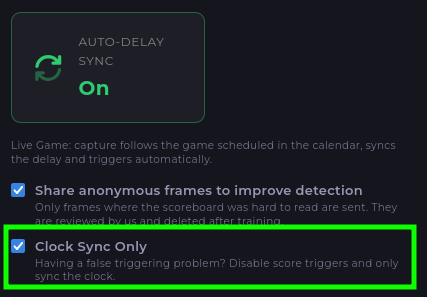
If you are using Live Game and Capture triggers goals when it should not (for example, it misreads a replay, a graphic or a different score on screen), turn on Clock Sync Only.
With this on, Capture only syncs the game clock from your screen, and ConnectedRoom's live data decides when a goal happens instead of the scoreboard on your TV. Your delay is still kept in sync, so Auto-Delay Sync stays on while Clock Sync Only is enabled.
Help Capture get better
ConnectedRoom Capture is still learning, and improves every week. You can help by turning on Share anonymous frames to improve detection.
Only frames where the scoreboard was hard to read are sent.
They are reviewed by us and deleted after training.
You can turn this off at any time.
Troubleshooting
My Hub isn't in the list: make sure the Hub app is running on the computer and that it is signed in to your ConnectedRoom account.
The Input list is empty: check that the capture card is plugged in and recognized by your computer, then reopen the Capture page.
Teams Detected is empty or wrong: make sure the scoreboard is visible on screen and your input is the right one. For video games, pick the teams yourself rather than using Auto-Team Matching.
Goals trigger by mistake: enable Clock Sync Only (see above).
Was this helpful?
Still need help? Ask the team