How to trigger your lights on Goal, Touchdown, Basket or Homerun
Written By Guillaume
Last updated 8 months ago
Creating an Action for when your team scores will allow you to celebrate every goal and touchdown better than ever.
What you need
Here is what you need before you can get started:
Compatible lights
Have one or more lights compatible with ConnectedRoom
ConnectedRoom account
Have a ConnectedRoom account with at least the Standard plan or Game Credits.
Connect your lights
In the app, navigate to Integrations and connect your compatible lights.
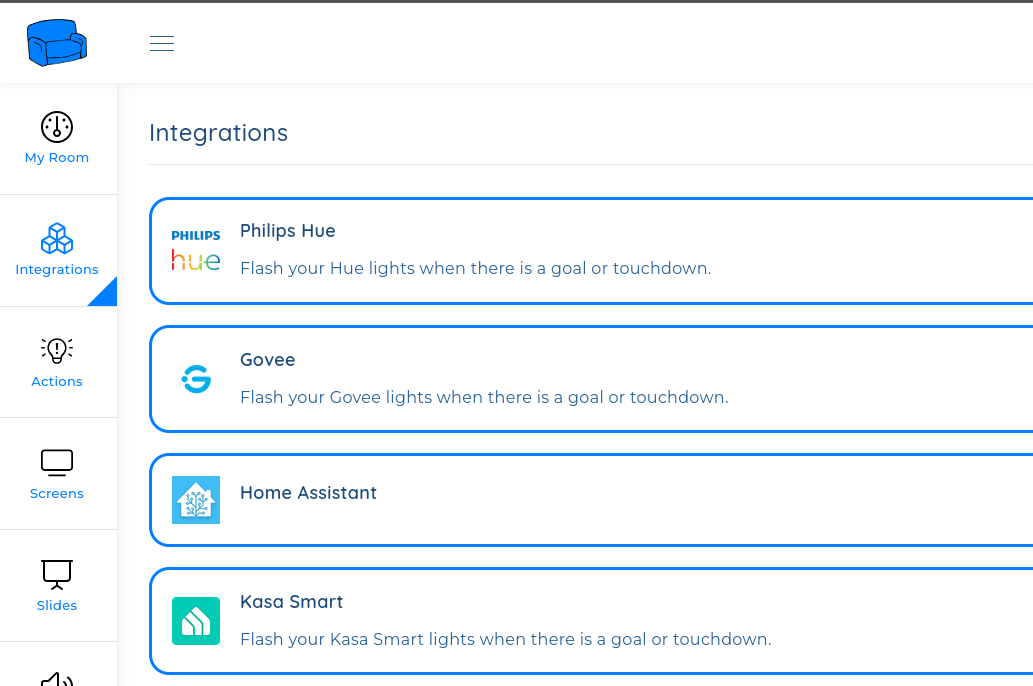
Create the Action
Navigate to Actions using the menu.
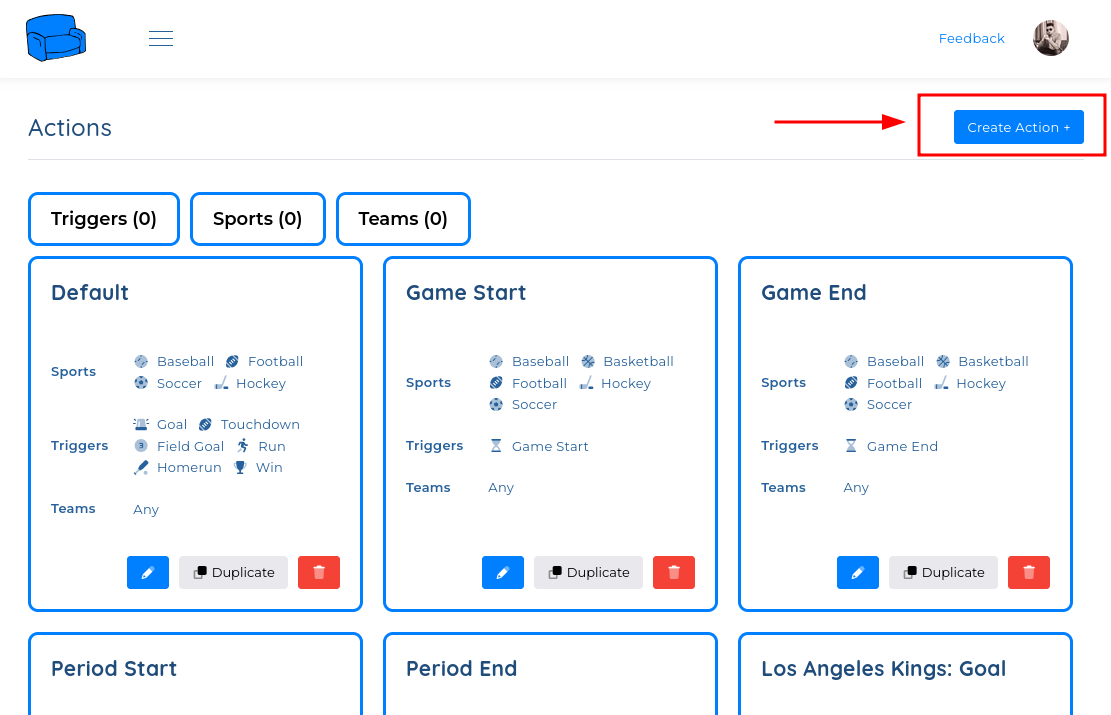
Configure the Action
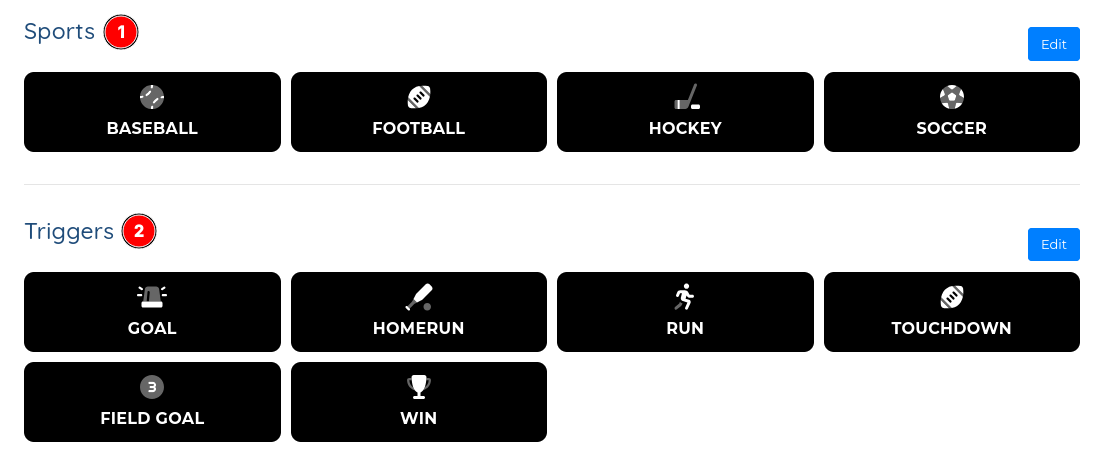
Configure the Action with the sports of your choice and the Scoring triggers of your choice.
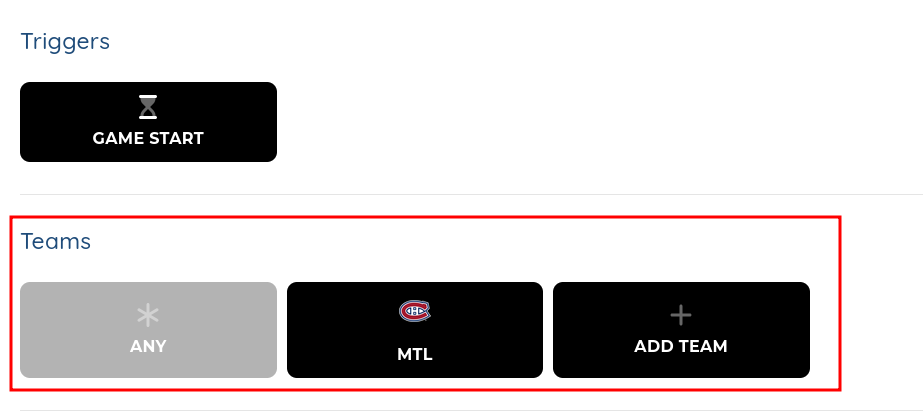
Optional: Select a team on the action
You can make the Action only execute for specific teams.
If you don’t select a Team, the action wil trigger every time a score from any team happens.
Add your lights to the action
You can add lights to the Action, so every score, these lights will execute a specific action.
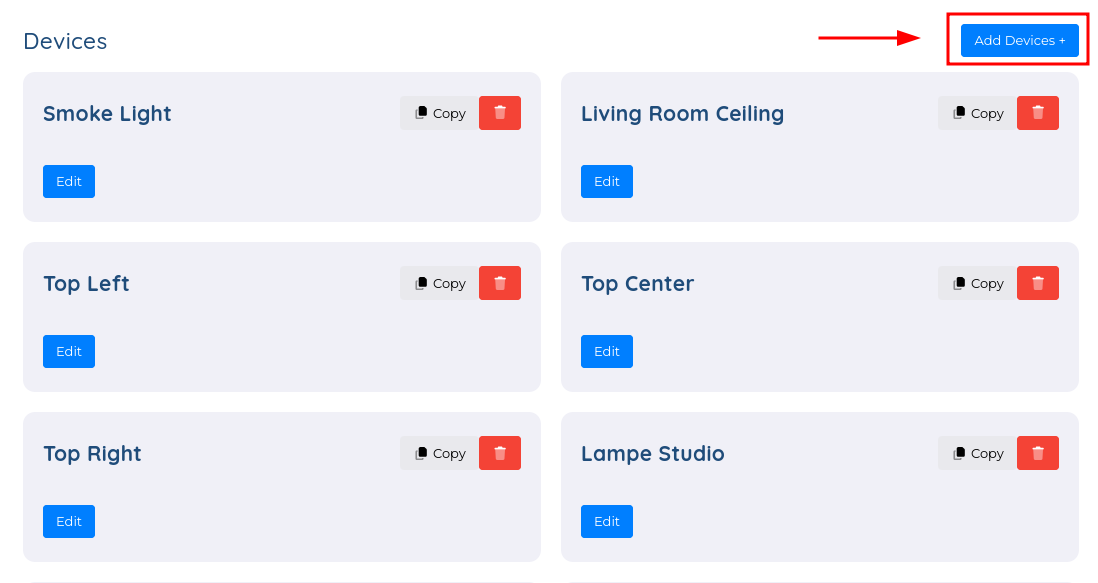
Add your lights by clicking Add Devices +
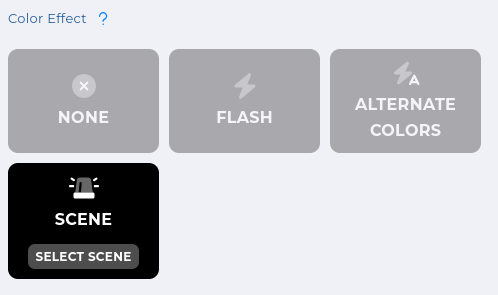
For each light, you can change the Color Effect to Scene so it will animate to a scene you created.
Govee Scenes
When using Scenes from Govee, the colors are hard-coded and will not change from the colors set in the Govee app.
It is recommended to create your own DIY Scenes using the Govee app.
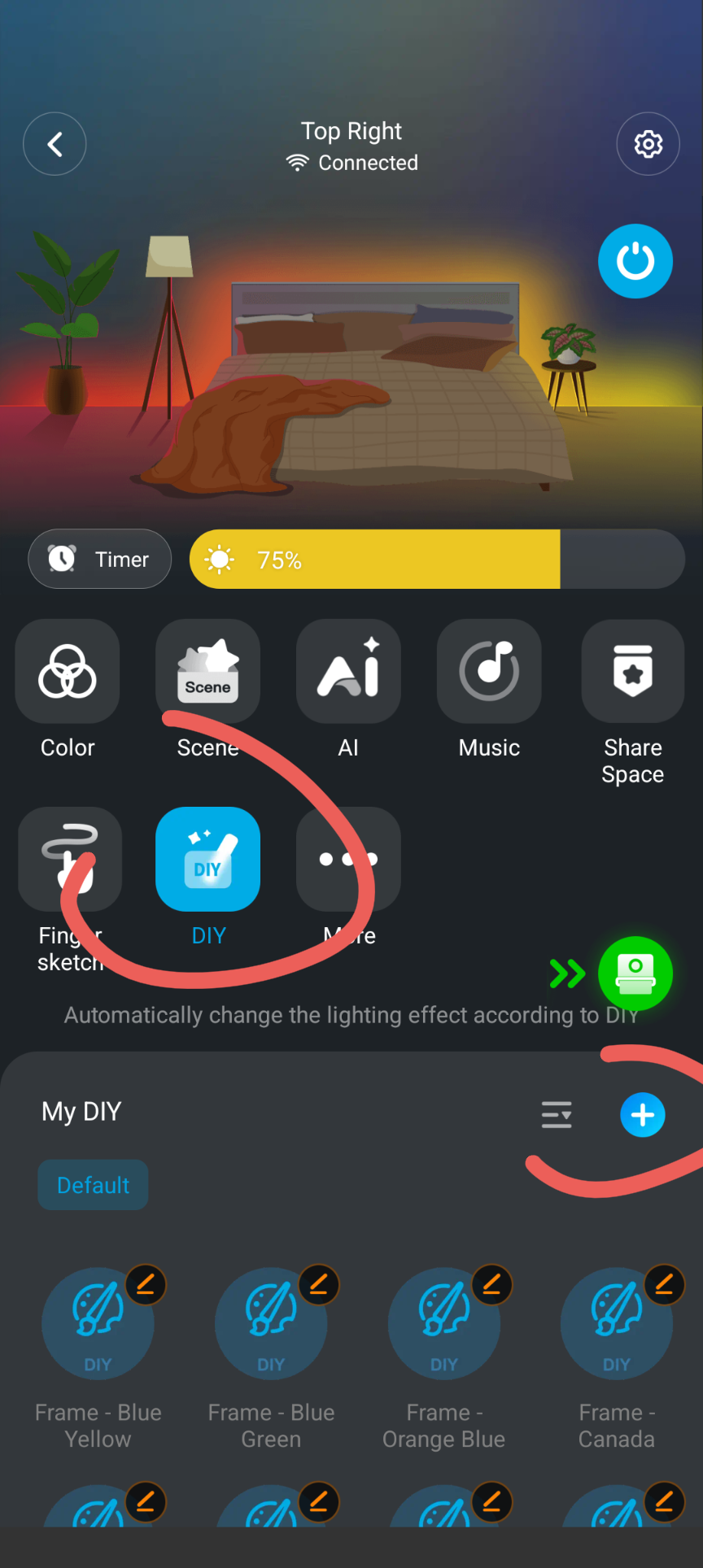
In the Govee app, select your light
Activate the DIY mode
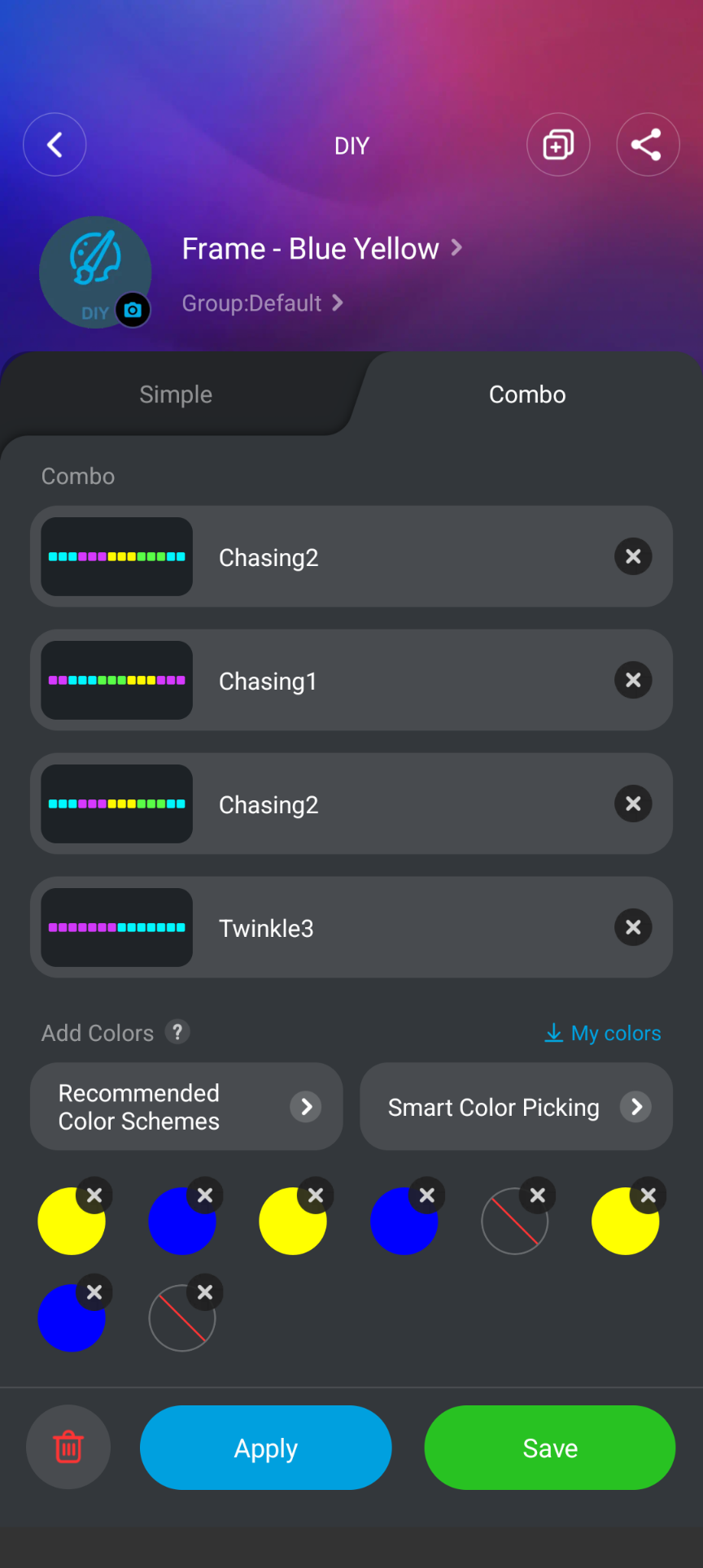
Click the + to create a new DIY scene
Name it and save it
The scene will appear in ConnectedRoom