Make your lights turn to your team colors at start of games
Learn how to make your entire home display your team colors when a game starts.
Written By Guillaume
Last updated 8 months ago
Creating an Action with the Game Start trigger is an excellent way to put yourself in the vibe by displaying your team colors in your home.
What you need
Here is what you need before you can get started:
Compatible lights
Have one or more lights compatible with ConnectedRoom
ConnectedRoom account
Have a ConnectedRoom account with at least the Standard plan or Game Credits.
Connect your lights
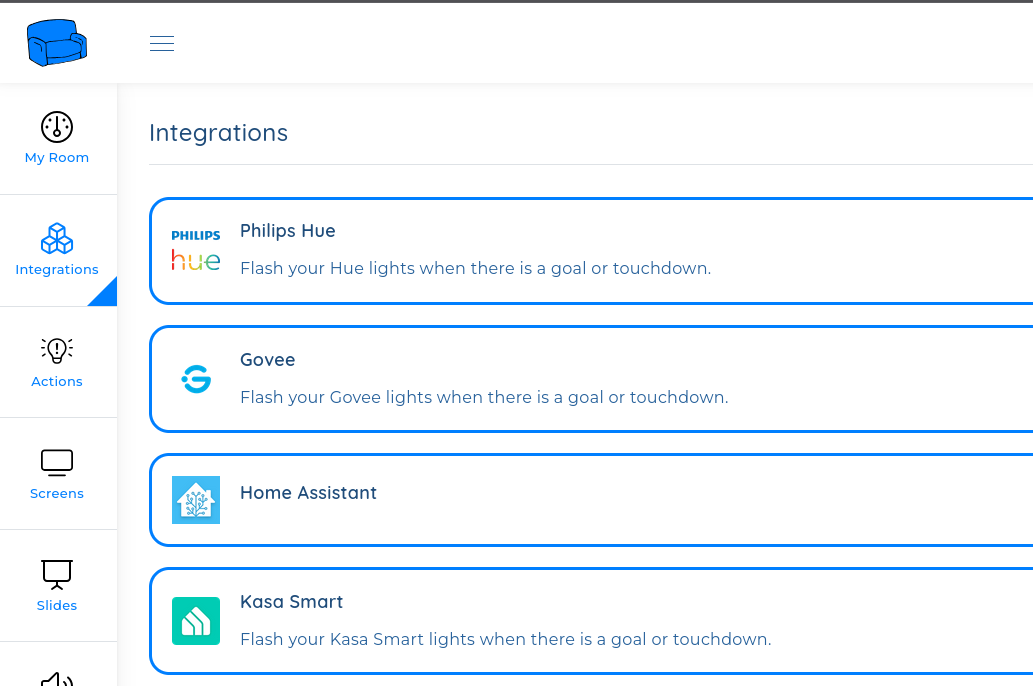
In the app, navigate to Integrations and connect your compatible lights.
Create the Action
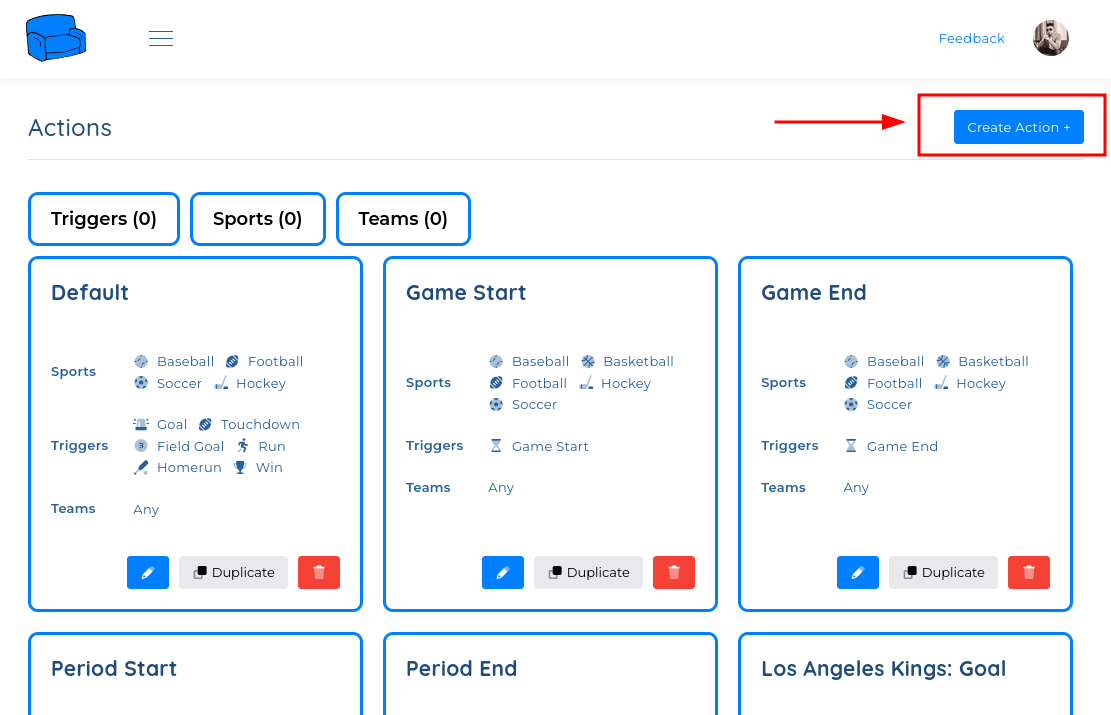
Navigate to Actions using the menu.
Configure the Action
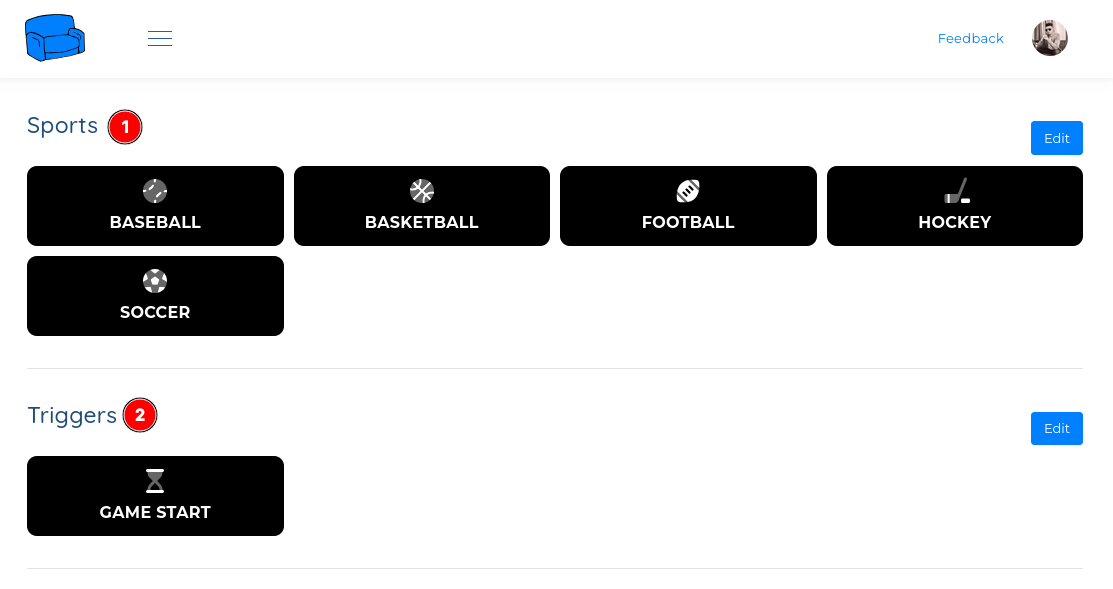
Configure the Action with the sports of your choice and the Game Start trigger.
Optional: Select a team on the action
You can make the Action only execute for specific teams.
If you don’t select a Team, every time a game starts for any team, their colors will be displayed.
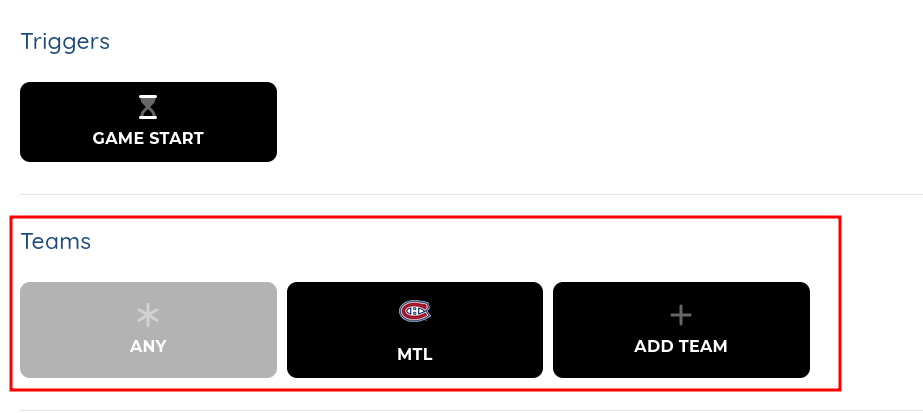
Add your lights to the action
You can add lights to the Action, so every game start, these lights will execute a specific action.
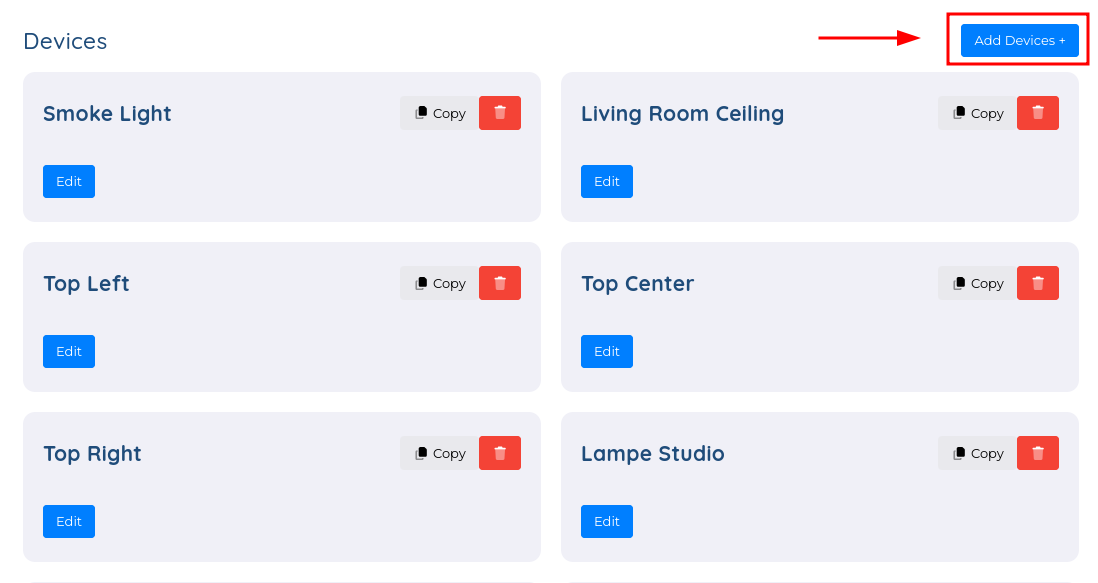
Add your lights by clicking Add Devices +
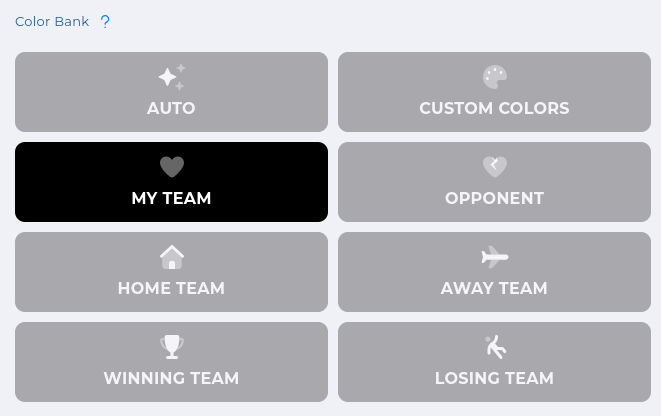
For each light, you can change the Color Bank to My Team so it will display the colors of your team. (If your team is not part of the game, it will fallback to the Home Team)