How to display Logos on the projector
Learn how to create a Logo Projection screen on your projector.
Written By Guillaume
Last updated 8 months ago
What you need
Here is what you need to project logos using ConnectedRoom:
A projector
A projector running Android or a projector with a computer, or fire stick plugged on it. A list of projectors is available here.
ConnectedRoom account
A subscription to ConnectedRoom or Game Credits. The logo projection screen requires at least the Standard plan or Game Credits.
Setting up the projector
Projector running Android
On your projector:
Open the Google Play store
Search for Zeus TV Browser
Install the browser
Projector without an operating system
Plug something on your projector that gives access to a Web Browser, like a Fire Stick or a Mini PC
Open a Web Browser
Displaying the Logo Projection screen
In the Web Browser, navigate to devices.connectedroom.io
A code will be displayed to you
Open the ConnectedRoom app on another device
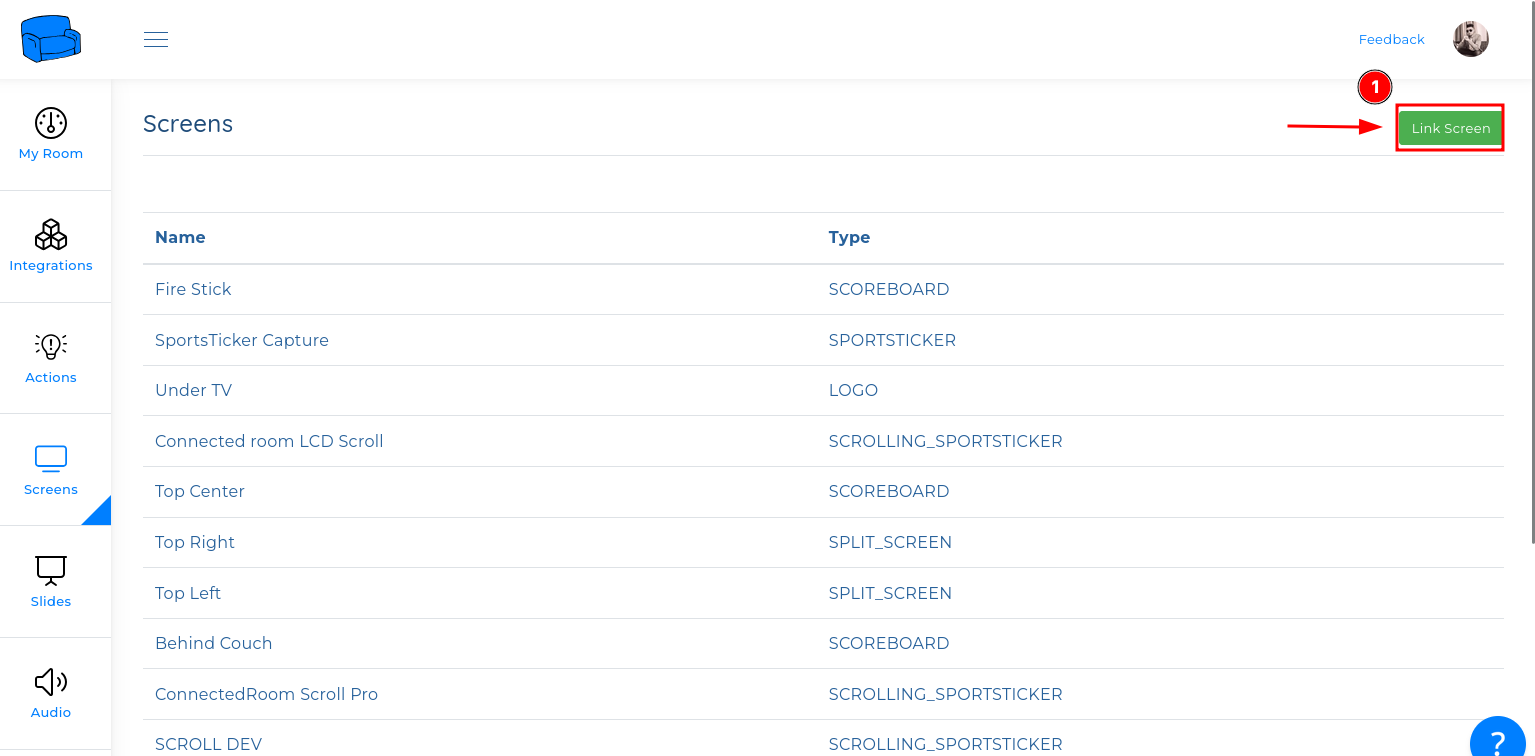
Go to Screens and click Link Screen at the top right
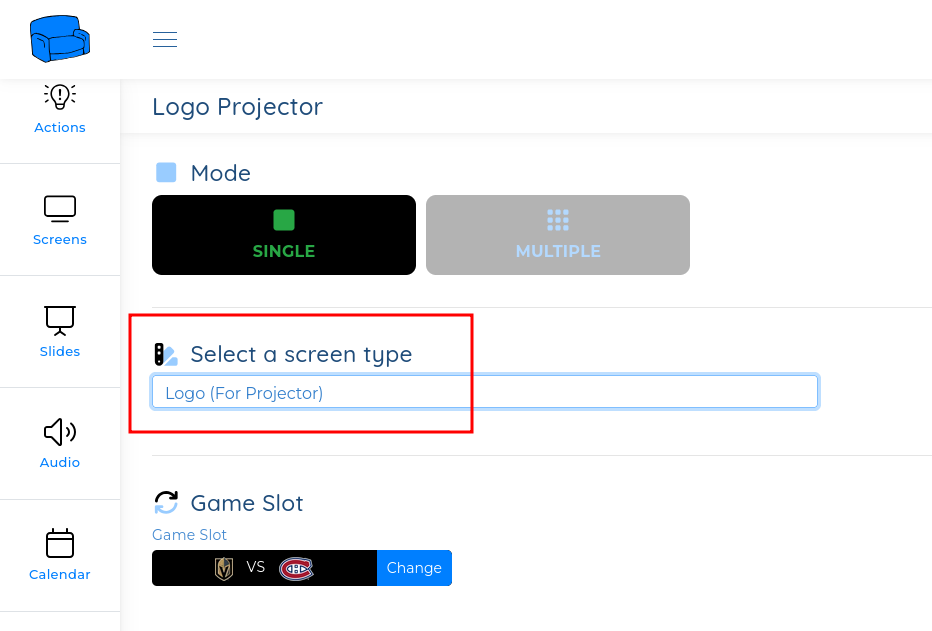
Select the Logo (For Projector) screen type
After you linked the projector, you can simply select the Logo (For Projector) screen type.