How to display multiple games on my scoreboards
ConnectedRoom allows you to sync to up to 5 games at once. Scoreboards can be set to display different games.
Written By Guillaume
Last updated 8 months ago

Schedule games to other game slots
In order to display multiple games on scoreboards, you first need to schedule games to multiple game slots.
Open the Calendar
Select the games you want to sync to
Assign different slot to each game
Setting the scoreboards to display different slot
Each scoreboard you create has the ability to be configured to a specific slot.

You can decide if you want your whole scoreboard to display a different game or if you want to display multiple games on the same scoreboard
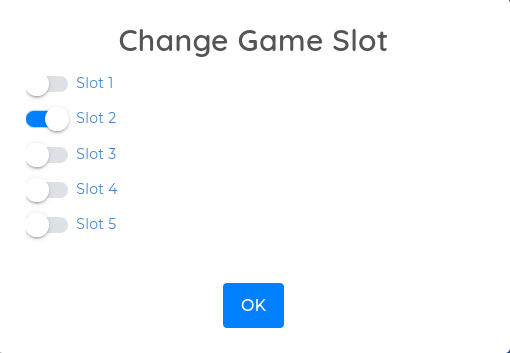
Assign a different game slot to your scoreboard
Multiple games on the same scoreboard
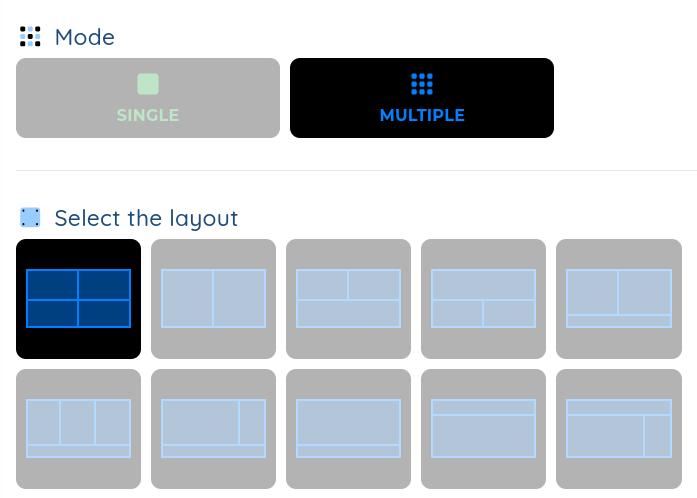
If you select the Multiple mode, you can select a layout and assign a different game slot per section.
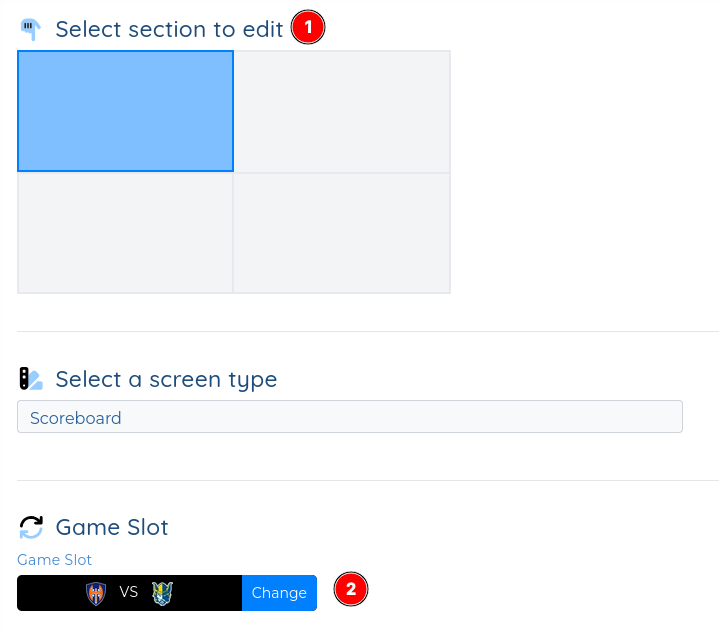
Start by selecting a section
Assign a different game slot to that section
Repeat step 1 and 2 for each section