How to connect VoiceMonkey
Learn how to connect VoiceMonkey for Alexa to ConnectedRoom
Written By Guillaume
Last updated 8 months ago
To connect VoiceMonkey with ConnectedRoom, follow these steps:
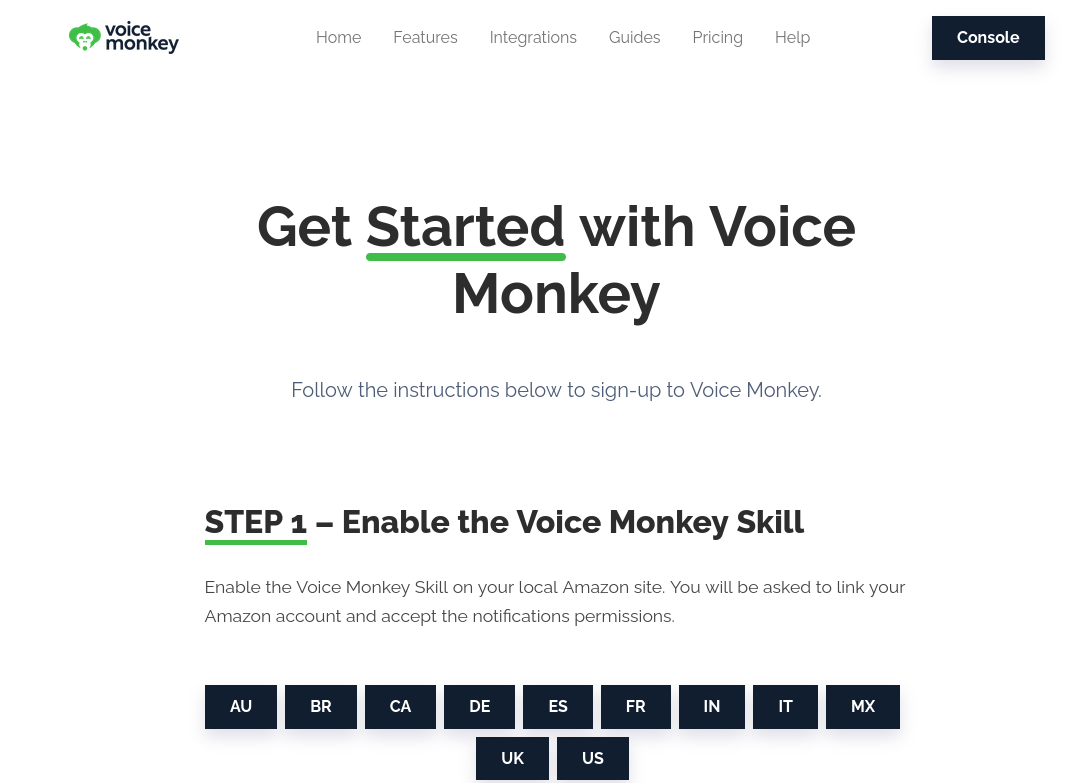
Create a VoiceMonkey account at https://voicemonkey.io/start by logging in with your Amazon account and completing the setup.
Log in to the VoiceMonkey Console at https://console.voicemonkey.io.
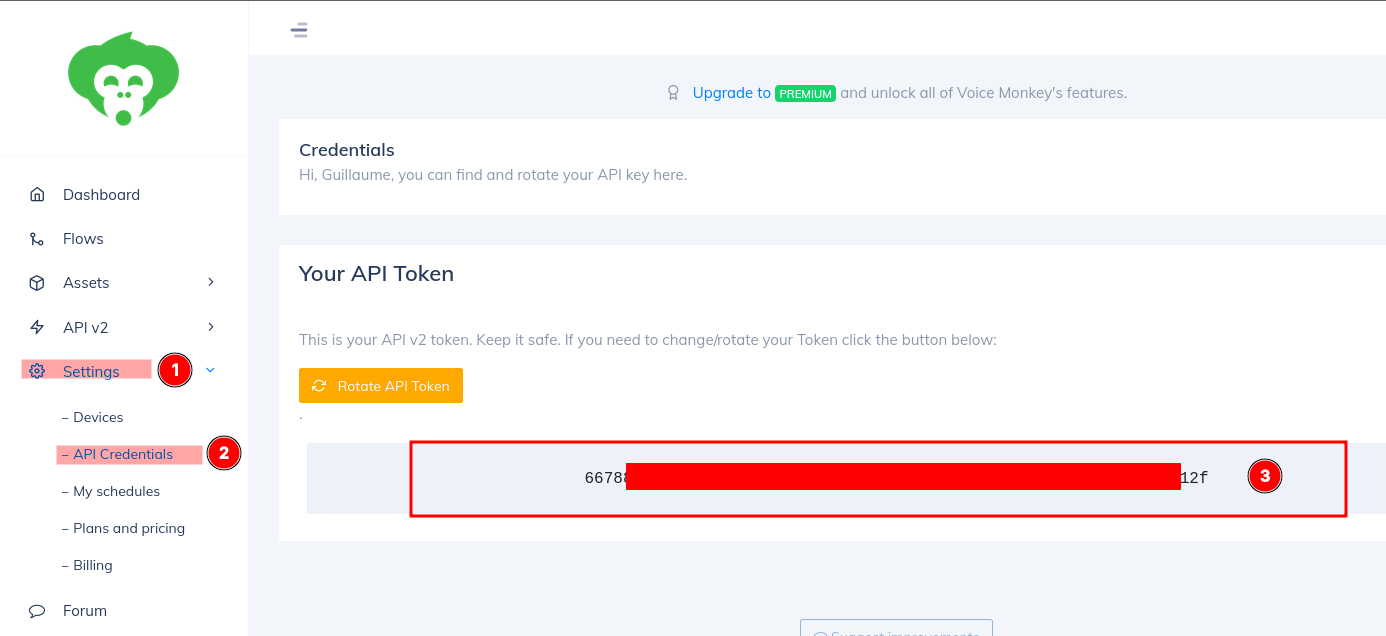
In the Console, go to Settings -> API Credentials to find your VoiceMonkey API Token.
Inside the ConnectedRoom app
Open the Audio panel using the menu and click Connect on VoiceMonkey.
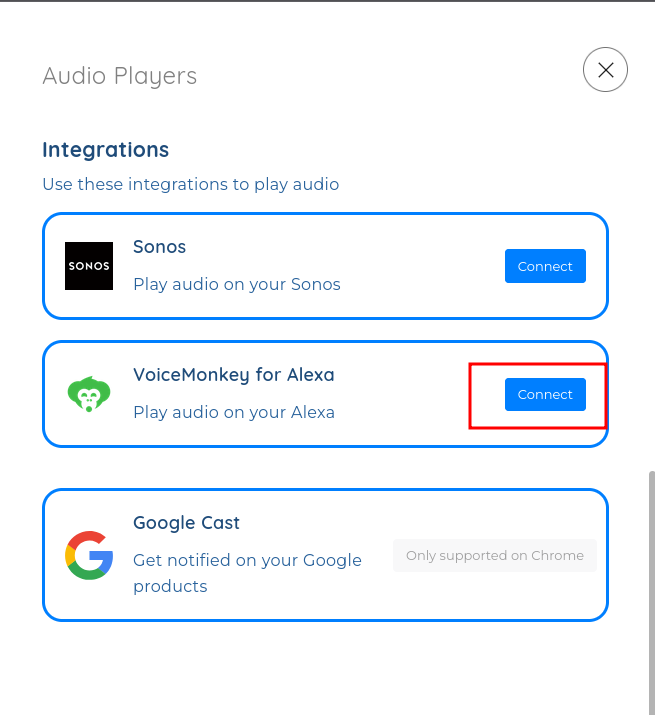
Use this API Token to connect VoiceMonkey to ConnectedRoom.
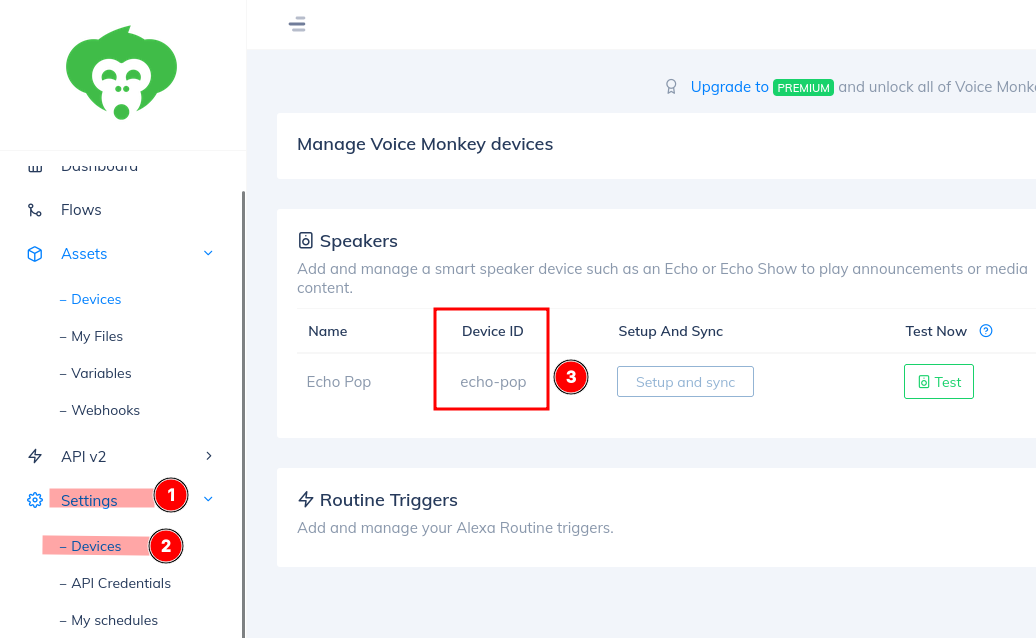
To add a VoiceMonkey speaker, get your Device ID by navigating to Settings -> My Devices in the VoiceMonkey Console.
Add the Alexa skill
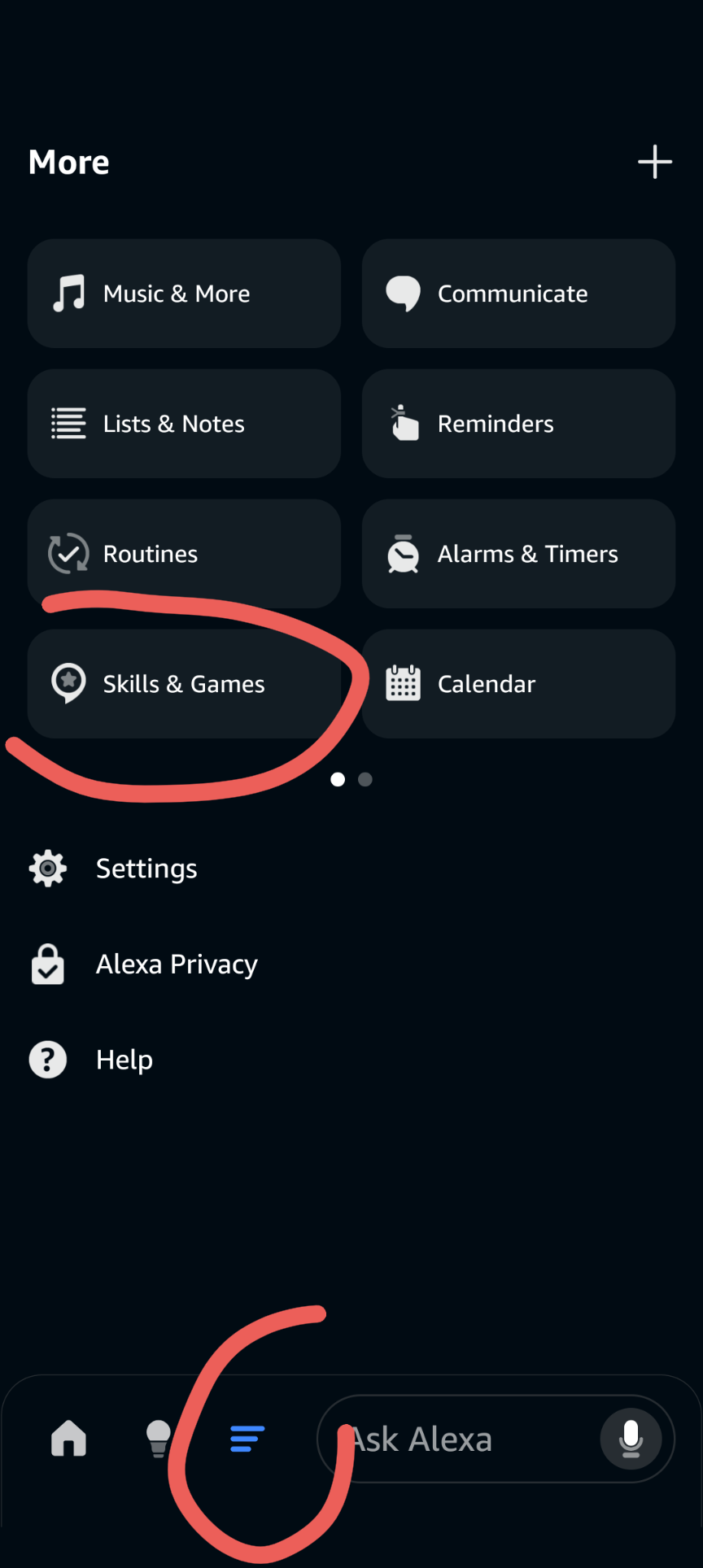
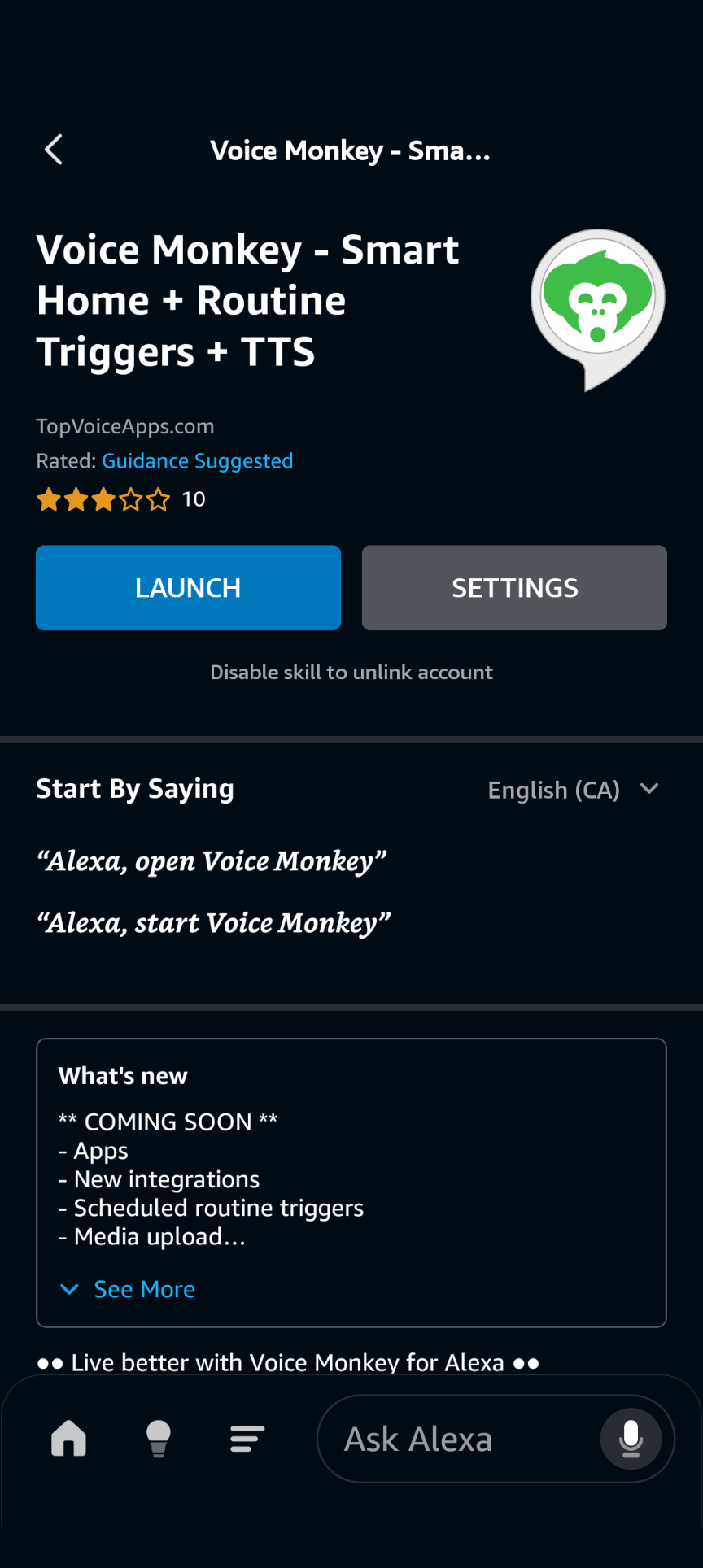
In the Alexa app, navigate to Settings → Skills. Search for VoiceMonkey and install the skill.
Create the routine
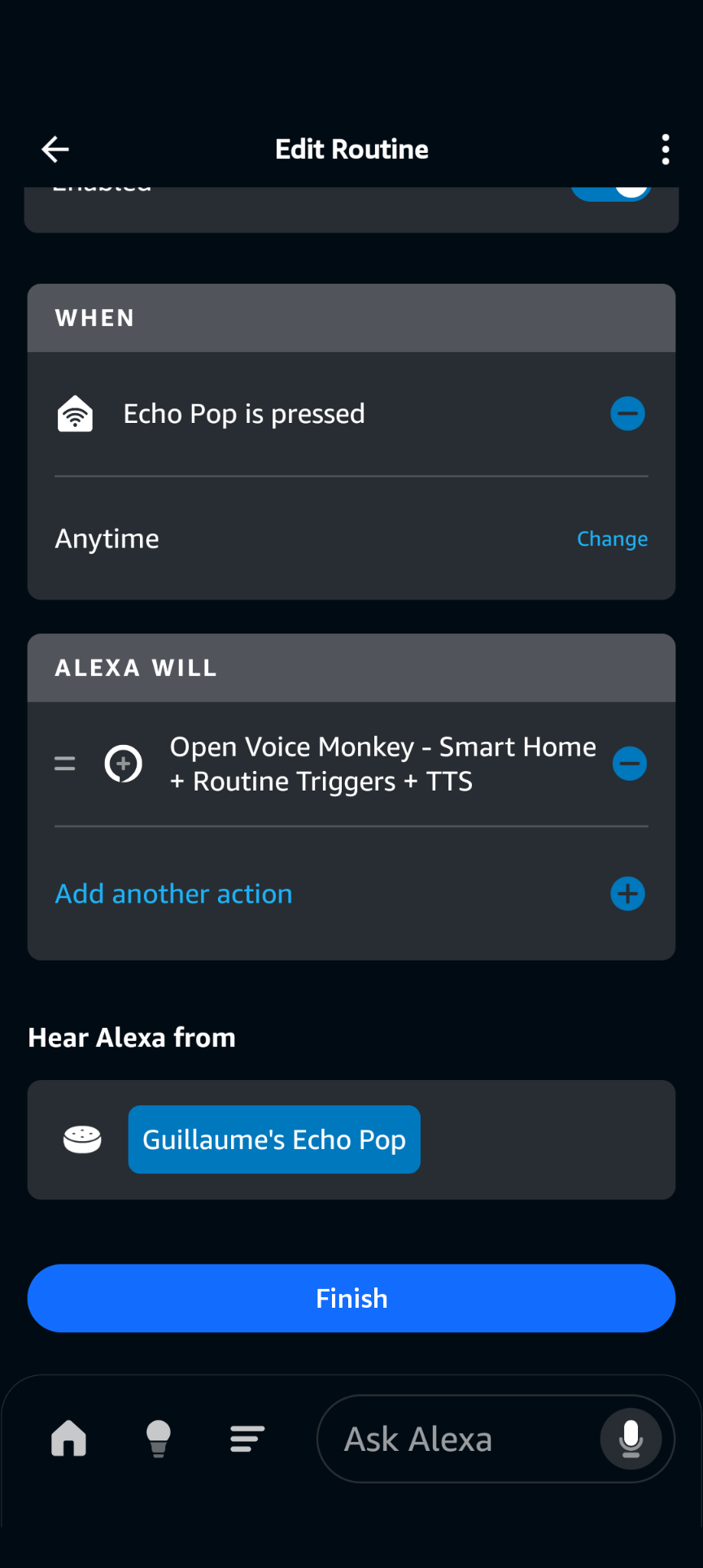
In the Alexa app, navigate to Settings → Routine. Create a new routine.
For trigger: select your device in the “Smart Home” section. When your device is pressed.
Action: select the VoiceMonkey skill
Where to play: select your Alexa speaker

Disabling the “Someone is at the door” announcement
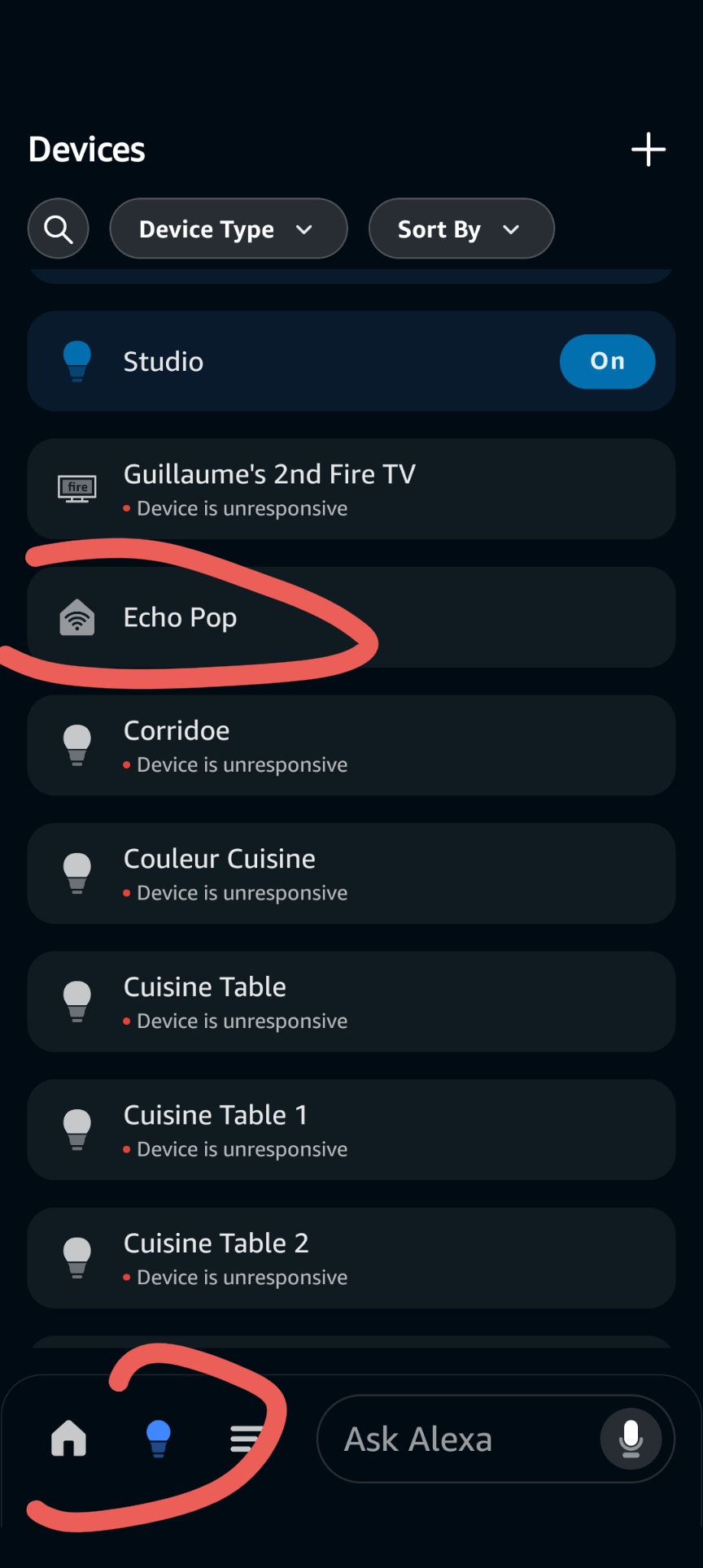
In the Alexa app, navigate to Devices → Select your VoiceMonkey device. Do not confund your actual speaker to the VoiceMonkey device.
The one you need to select has a WIFI icon
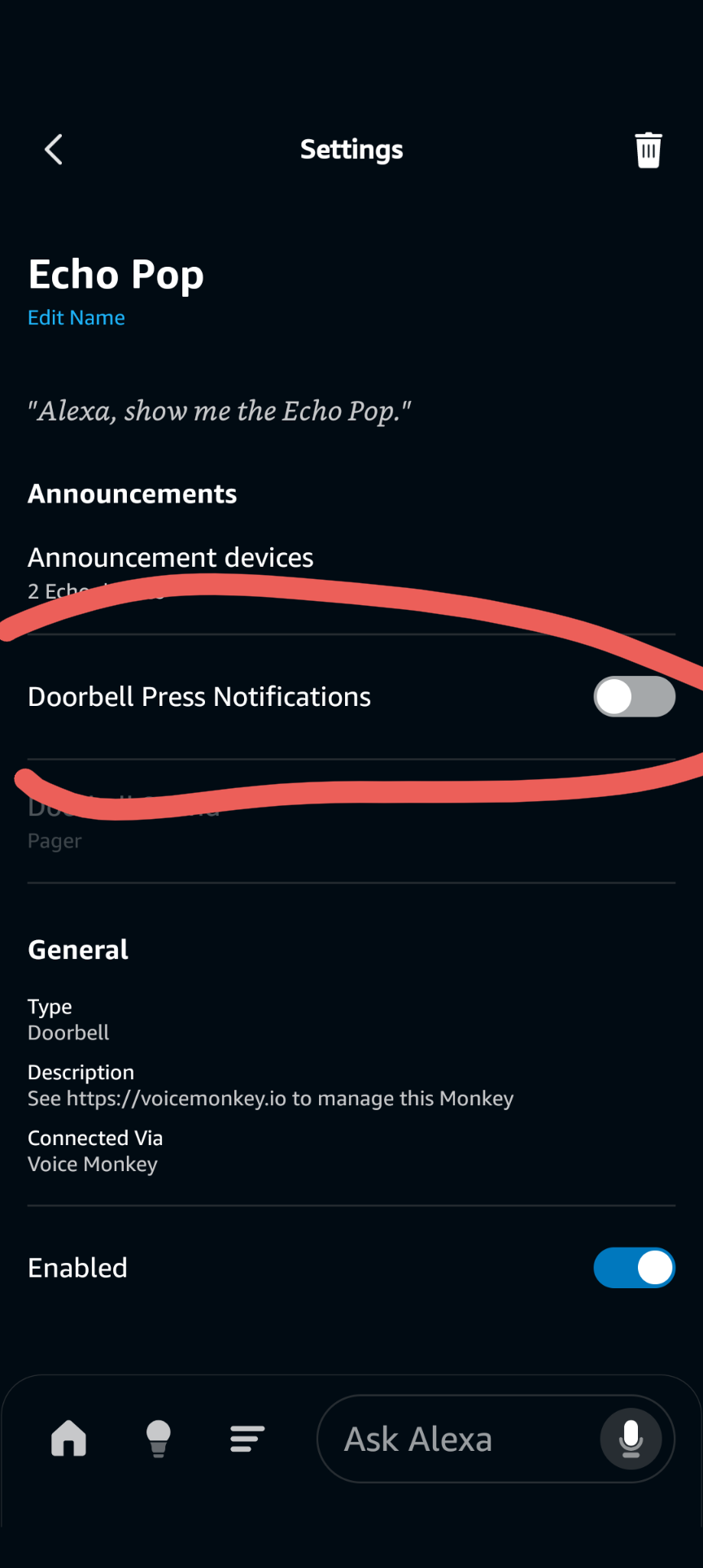
Disable the “Doorbell Press Notifications”.