How to use the Delay System in ConnectedRoom
Learn how to master the Delay System in ConnectedRoom to get near instant triggering and prevent spoilers.
Written By Guillaume
Last updated 8 months ago
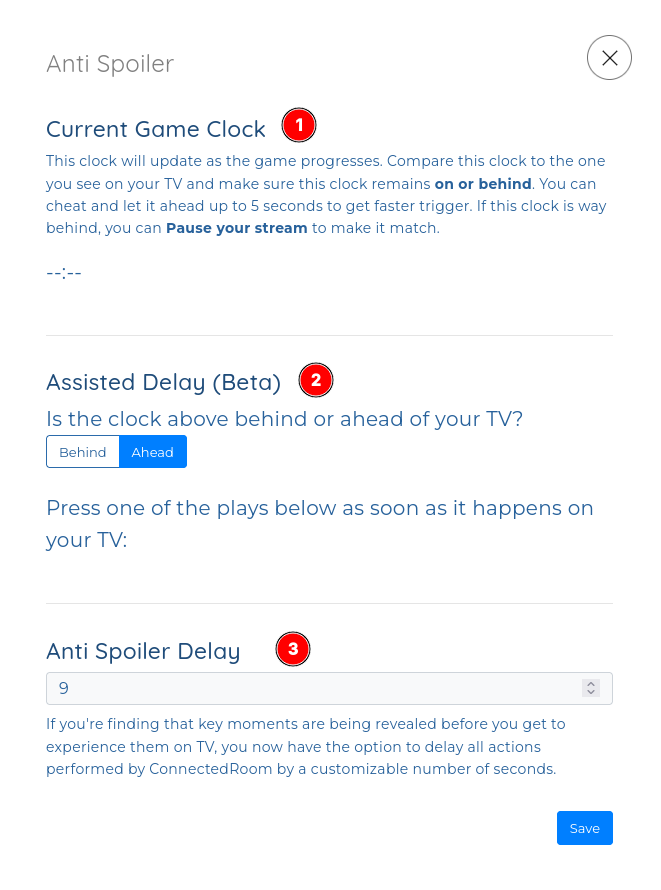
1. Current Game Clock
You can compare the app clock to the one displayed on your TV. It is very possible that the clock of the app is ahead of the one on your TV.
2. Assisted Delay
The Assisted Delay allows you to quickly adjust your delay based on stoppage.
3. Manual Delay
You can manually adjust the delay as well.
How to use the Assisted Delay
In the app, navigate to Settings
Click Edit Delay
Start by comparing the clock displayed in the app to the one you have on your TV
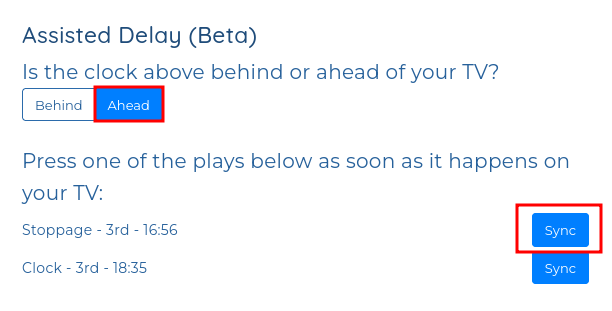
Under Assisted Delay, select the correct option
Ahead (most probable): the app clock is ahead of your TV
Behind (rarely happens): the app clock is behind the clock of your TV, meaning triggering would be late
Check for the events in the list and click Sync as soon as it happens on your TV
For example, the moment the whistle blows at 16:56, click Sync.
Adjust for faster triggering
Even if your clock is perfectly matching, triggering will probably still be late. You need to cheat the clock to make it faster.
Make sure the clocks are matching
Reduce the delay by about 8 to 15 seconds to allow triggering to be quicker
What to do if the triggering is still late
If the triggering is still late, you can count the seconds between it happening on TV and ConnectedRoom triggering the event. Once you have an idea of the elapsed time, go to the app and reduce the delay by this amount of time.
What to do if the triggering is still early
If triggering is still early, you can count the seconds between ConnectedRoom triggering the event and the event happening on TV. Once you have an idea of the elapsed time, go to the app and add this amount of time to your delay.