How to create a DIY Govee Scene
Learn how to create your own Scenes for your teams.
Written By Guillaume
Last updated 8 months ago
Govee Scenes
When using Scenes from Govee, the colors are hard-coded and will not change from the colors set in the Govee app.
It is recommended to create your own DIY Scenes using the Govee app.
In the Govee app, select your light
Activate the DIY mode
Click the + to create a new DIY scene
Name it and save it
The scene will appear in ConnectedRoom
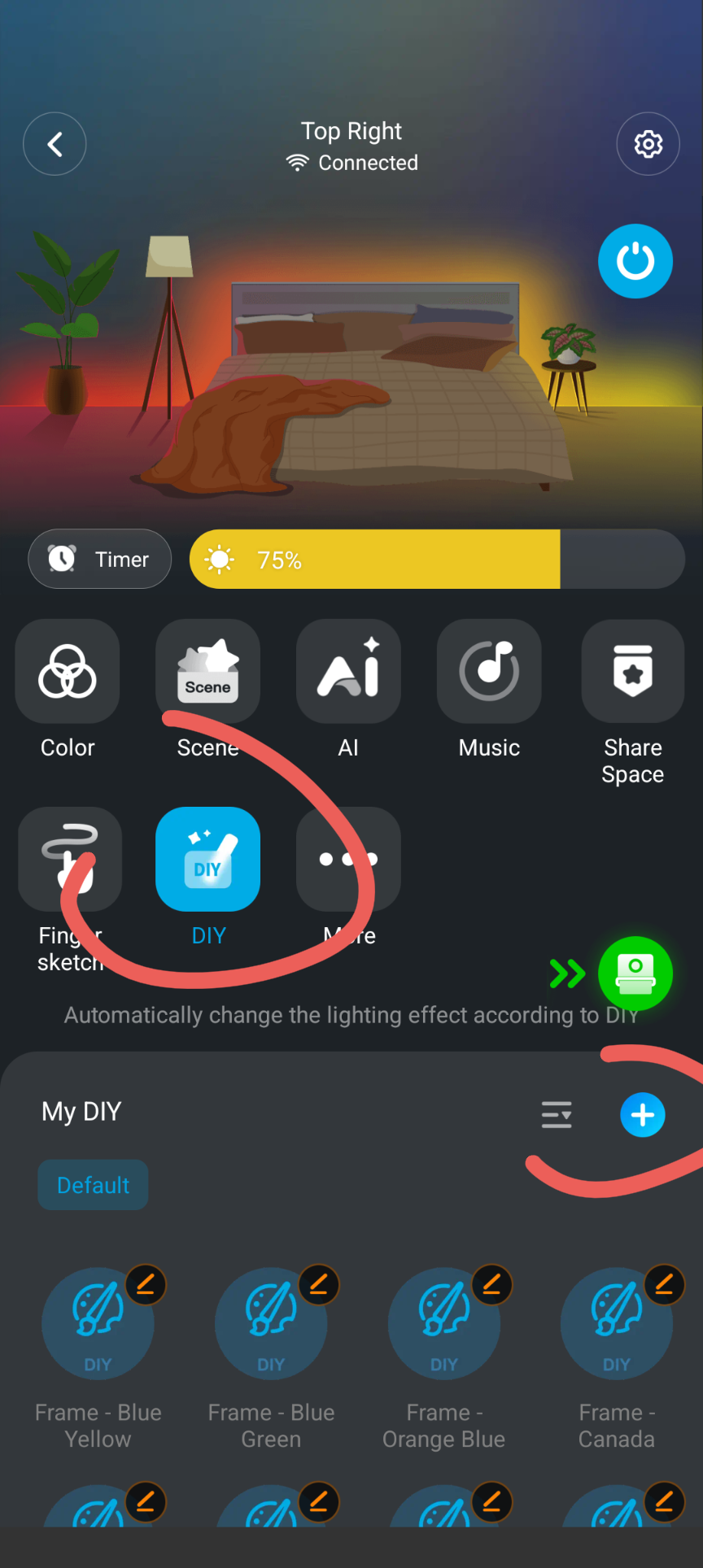
You can create a Govee DIY scene by navigating to your light in the Govee app, selecting DIY mode and clicking the + icon to create a new scene
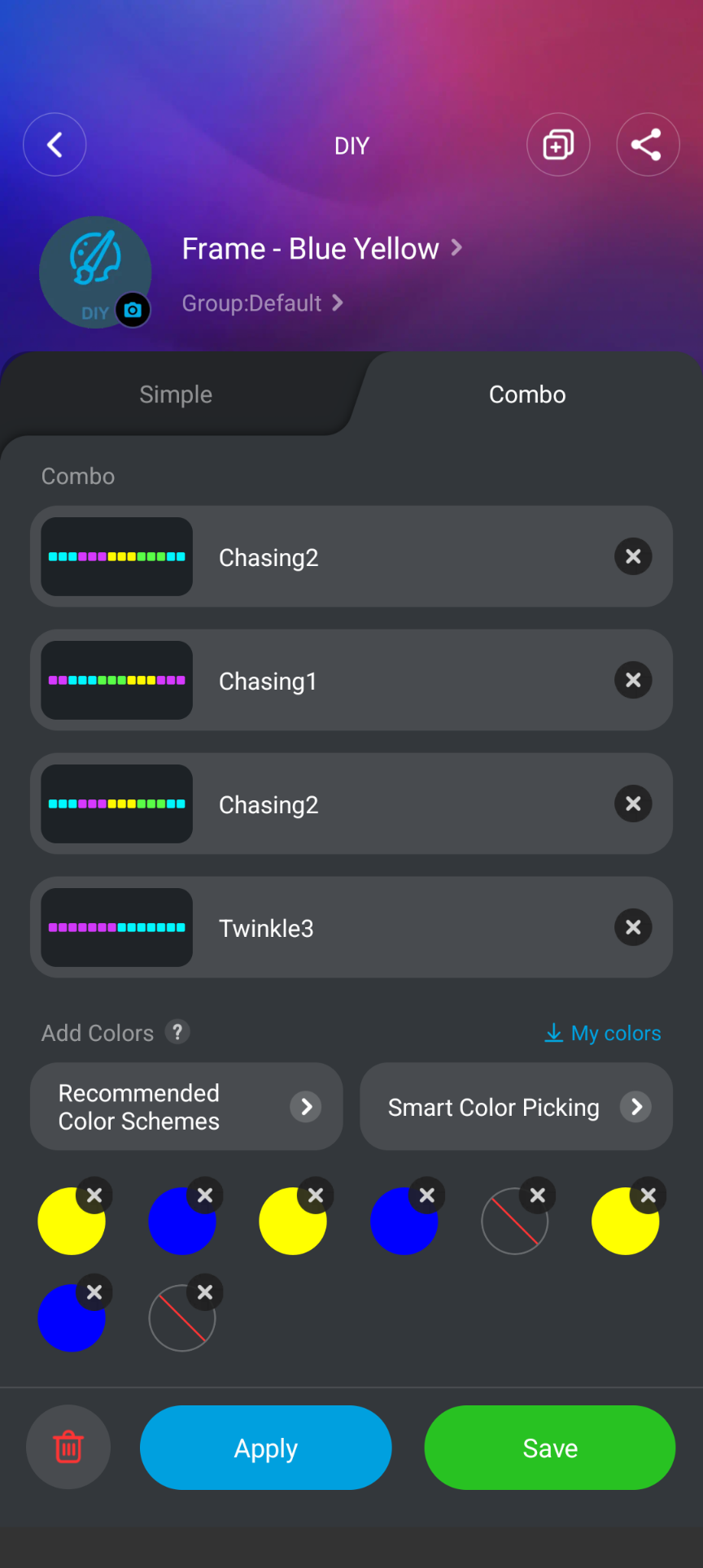
You can play around and try multiple effects in the Govee app. Here is an example of an effect I made.