Trigger ConnectedRoom using a Stream Deck
Learn how to trigger ConnectedRoom Buttons on your Stream Deck
Written By Guillaume
Last updated 7 months ago
ConnectedRoom has a Button API that allows you to trigger any Actions from external devices or applications, like the Stream Deck.
Enable API Access
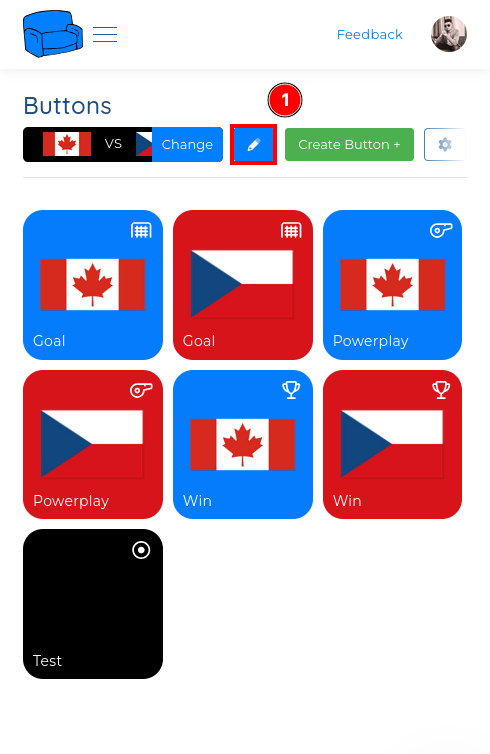
On the Buttons page:
Click Edit (Blue pencil)
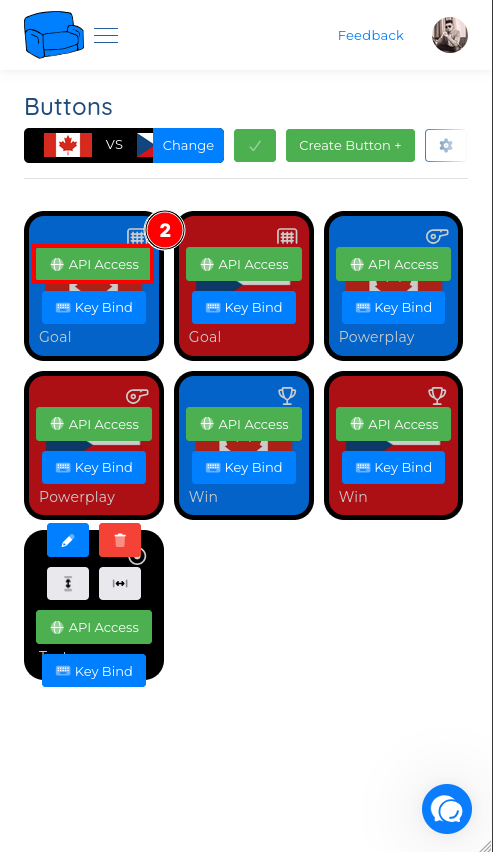
Select API Access on one of your button
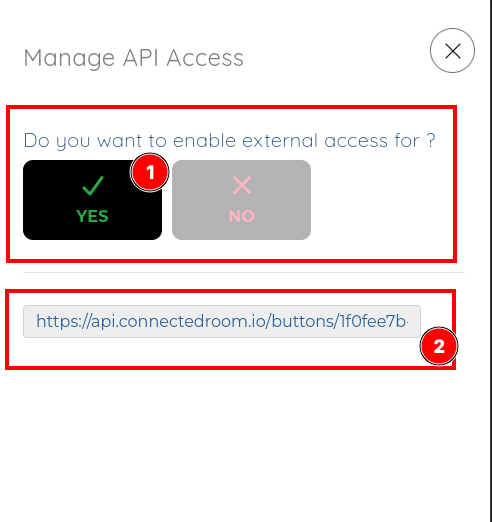
Enable API Access
Copy the URL
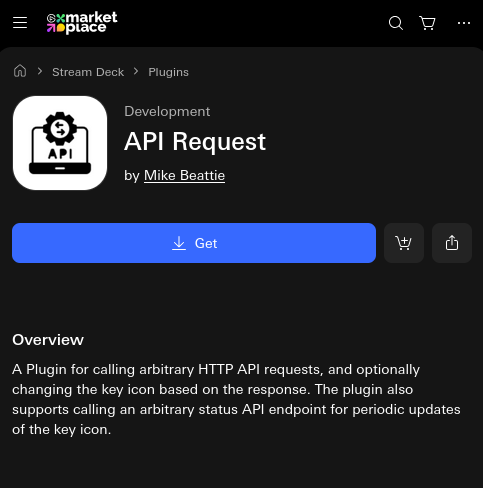
Install the API Request plugin on your Stream Deck
On your Stream Deck, search for the API Request plugin. It will allow you to trigger the ConnectedRoom API from one of the key of your Stream Deck.
Create a new key on your Stream Deck
Create a new key on your Stream Deck and insert the API Request plugin you just installed.
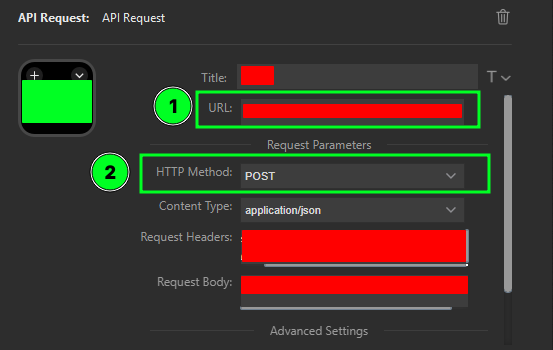
Paste the URL you got for your button
Select POST for request method