How to connect a Smoke Machine using SwitchBot
Learn how to connect a smoke machine using the SwitchBot integration
Written By Guillaume
Last updated 9 months ago
What you need
All the things you need are available here.
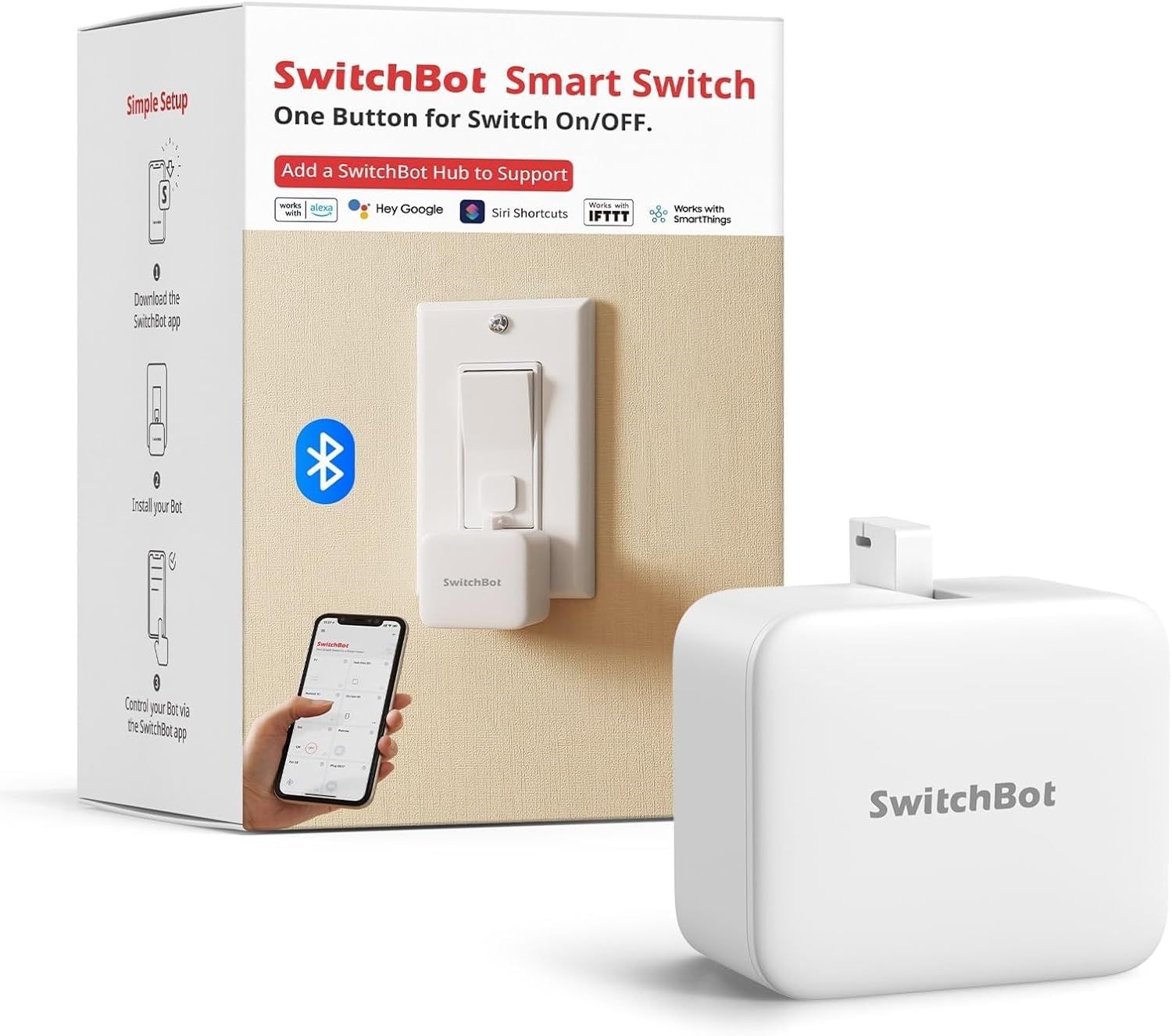
SwitchBot Bot
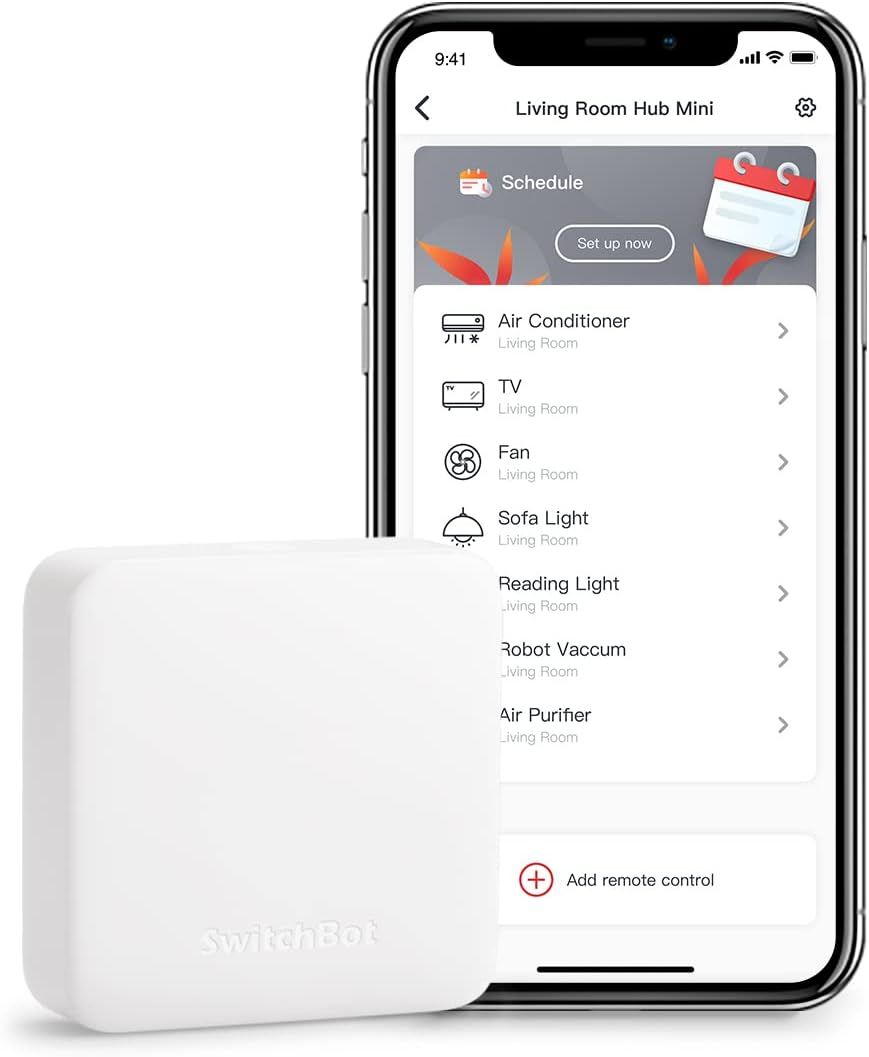
SwicthBot Hub
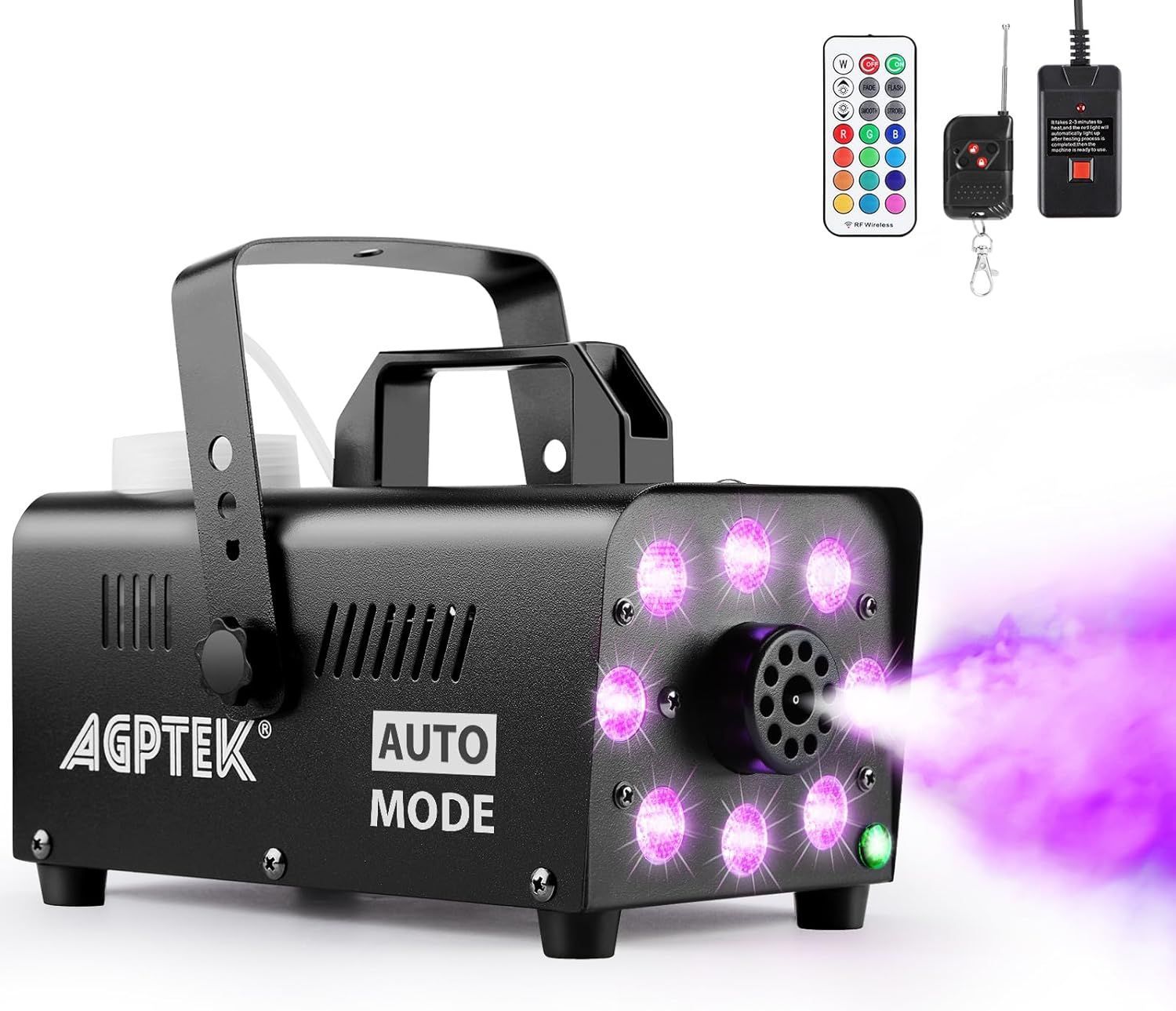
A smoke machine with a press button
Connect the SwitchBot integration
Install the SwitchBot app on your phone
Create a SwitchBot account that is required for ConnectedRoom to communicate with your hub.
Pair your hub in the app
Pair your Bot in the app
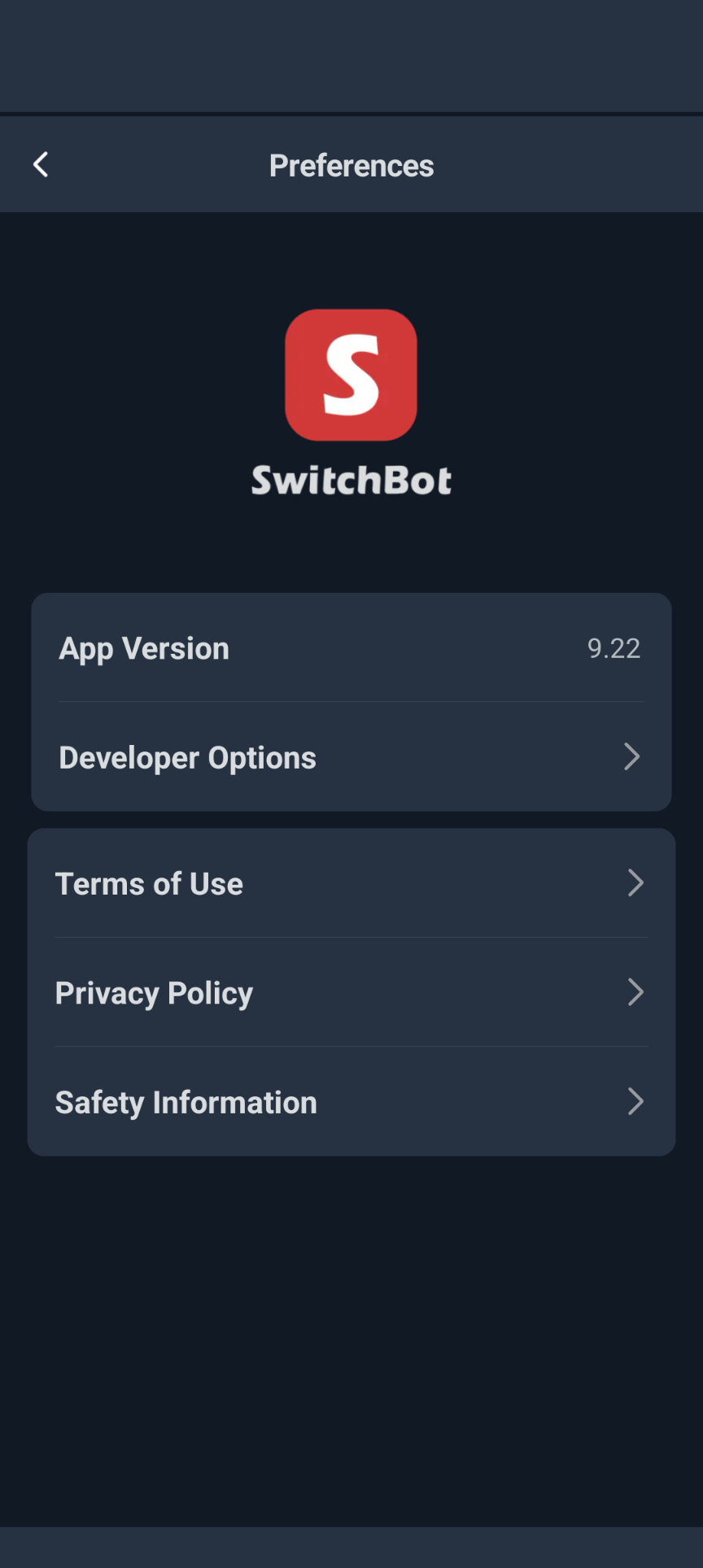
Go to the Profile tab in the SwitchBot app
Go to Preferences, and then About
Find the place it stating the SwitchBot app version
Tap 10 times on the version to enable Developper Tools
Navigate to Developer Tool
Use these informations in ConnectedRoom when connecting the SwitchBot integration.
Troubleshooting
I connected the SwitchBot integration and the SwitchBot device does not appear in my actions. What to do?
I connected the SwitchBot integration and the SwitchBot device does not appear in my actions. What to do?
It often happens when pairing a new Bot in the SwitchBot app. To fix this, simply:
Turn off your Hub by disconnecting the power cable
Power it back on by plugging the power cable back
Wait until the Hub is connected to your Wifi again.
In ConnectedRoom, when adding a device, click the red Reset Cache button
Your SwitchBot device should now appear
I have multiple SwitchBot Bot I want to trigger at the same time, but they are not in sync.
I have multiple SwitchBot Bot I want to trigger at the same time, but they are not in sync.
This is a caveat of the SwitchBot Hub. The hub is only allowed to control 1 device at a time. For multiple smoke machines in sync, it is recommended to use DMX-controlled smoke machines and a DMX controller.
Nothing happens when I tap the App Version
Nothing happens when I tap the App Version
Make sure to create a SwitchBot account first in the app. If you already have one, make sure to sign in in the app.
Was this helpful?
Still need help? Ask the team